For schools & K-12
Digital signage for schools, on Apple TV
Your school already has Apple TVs in classrooms, hallways and the front office, most of them sitting idle. Billboard turns them into signage: announcements, event notices and student work on every screen, rolled out with your MDM and run from one dashboard. No new hardware, and one flat price instead of per screen. Schools across Australia and beyond already do it this way.

See it on your school screens
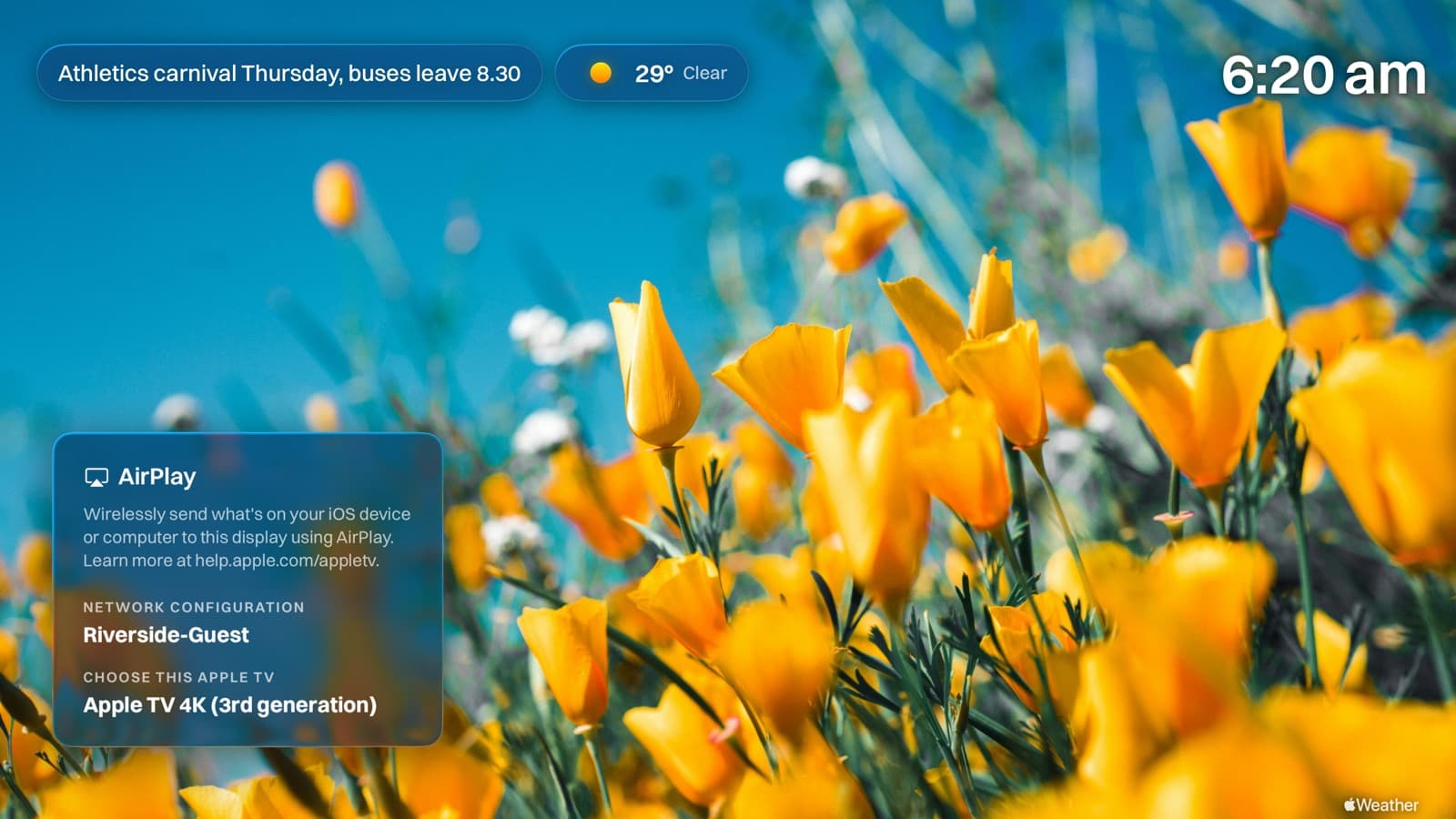
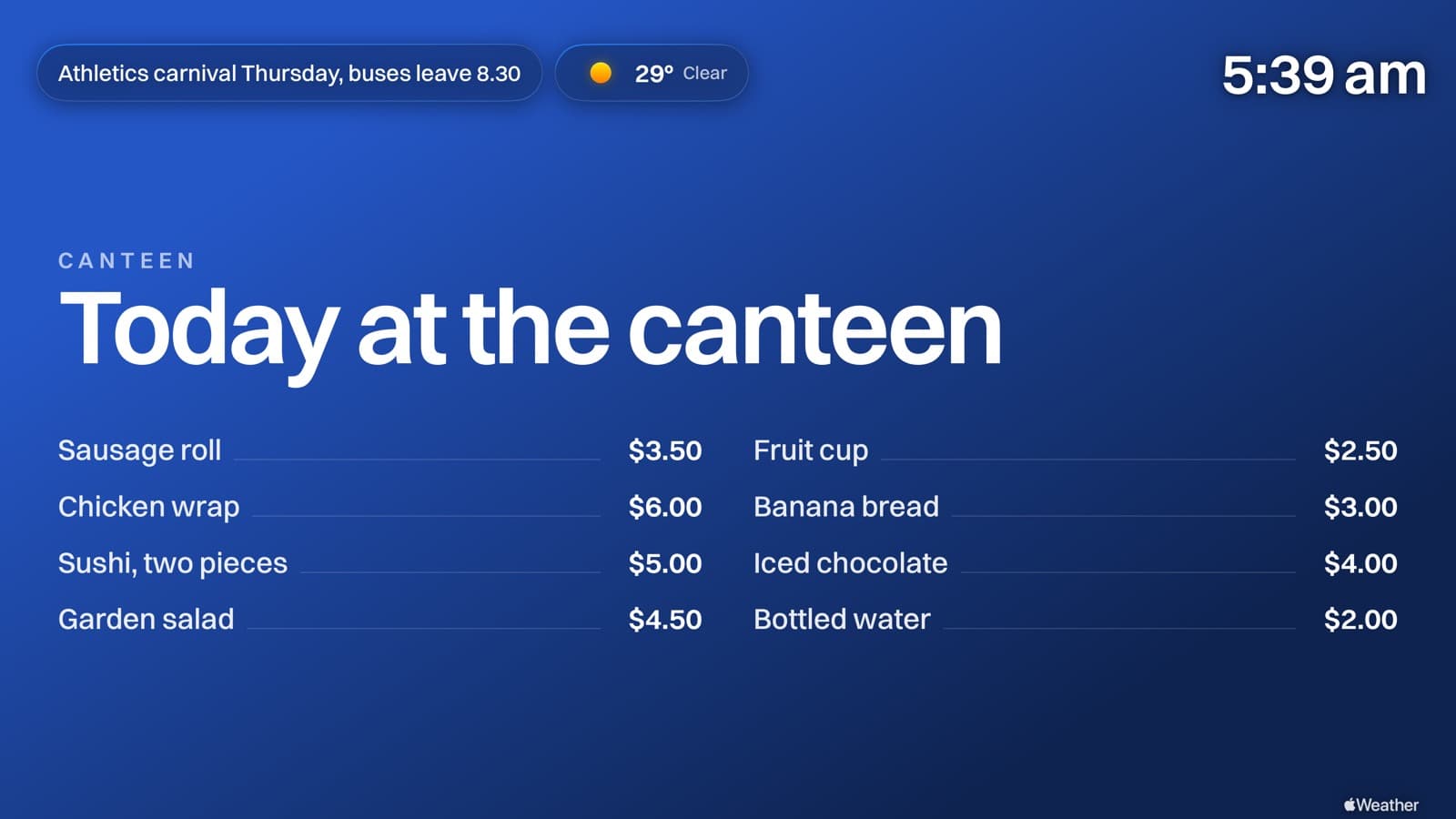
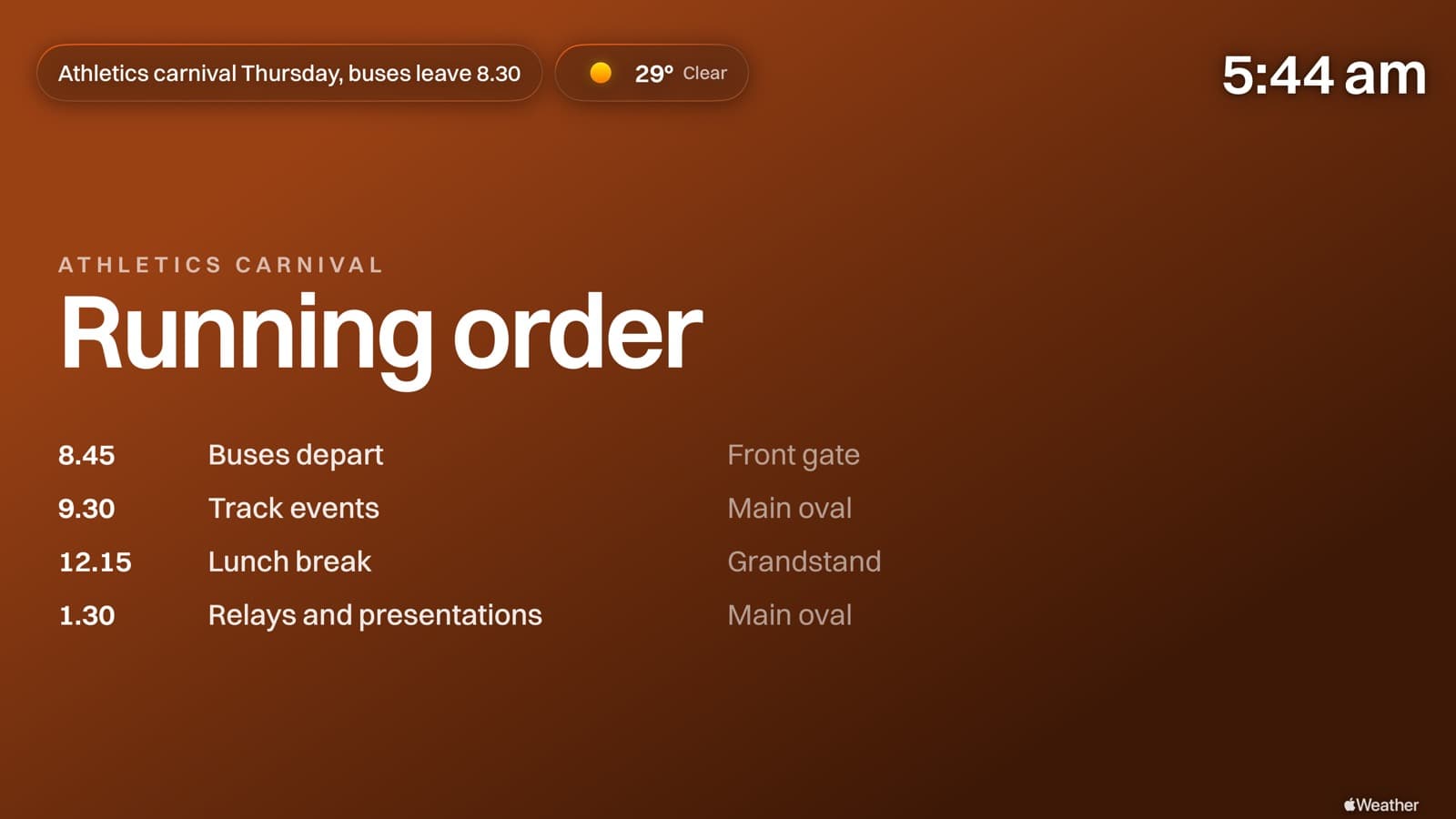
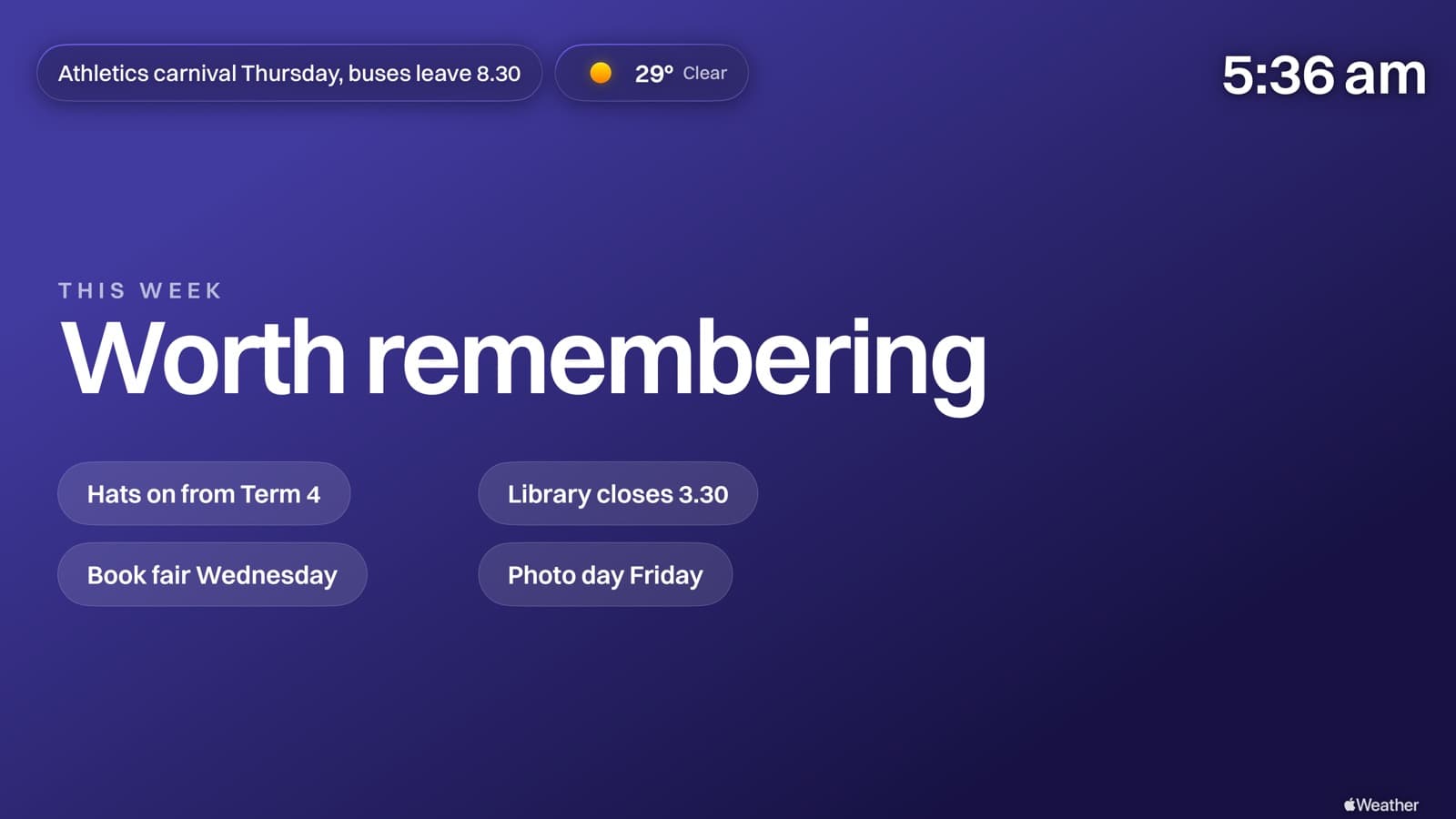
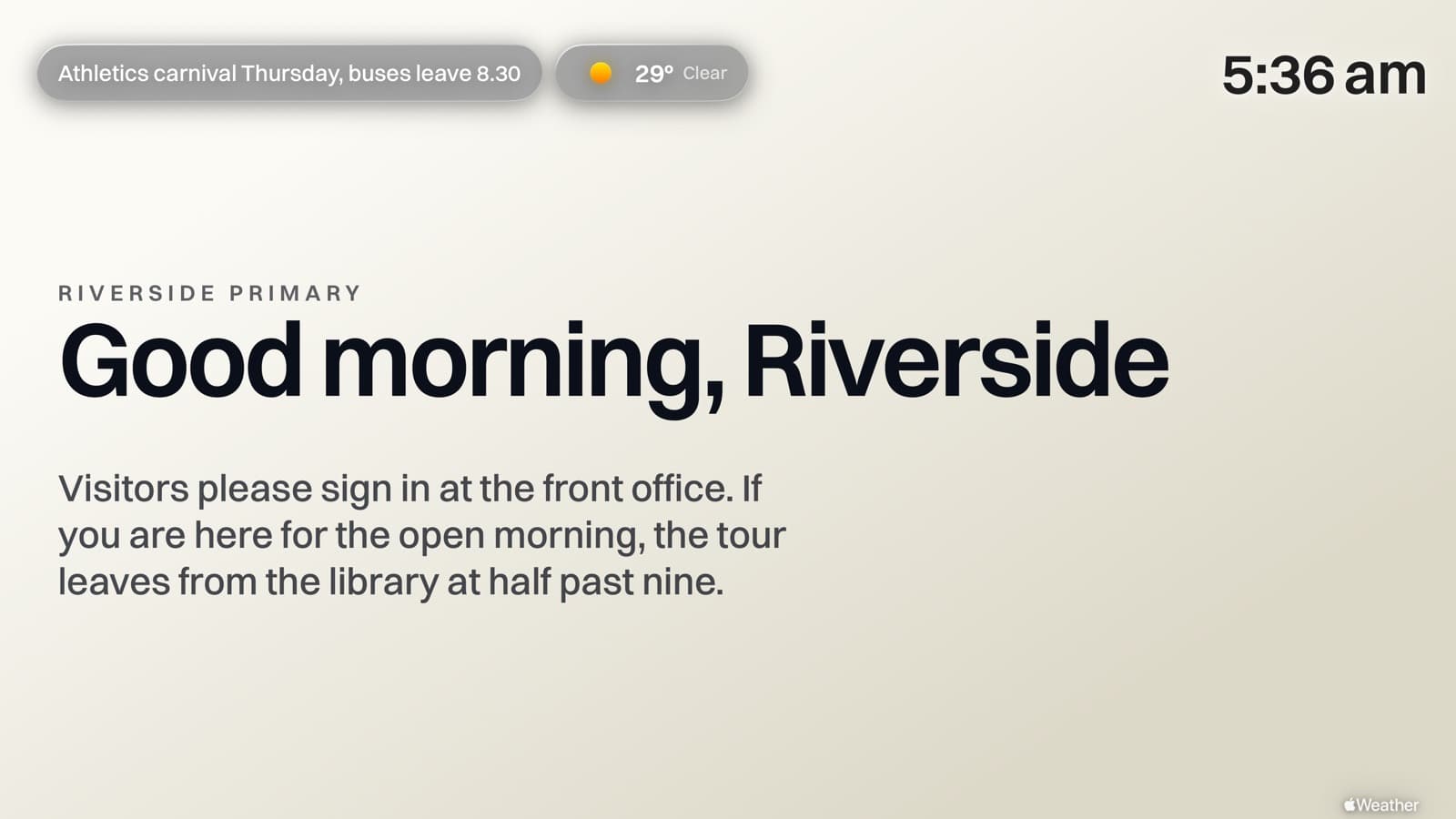
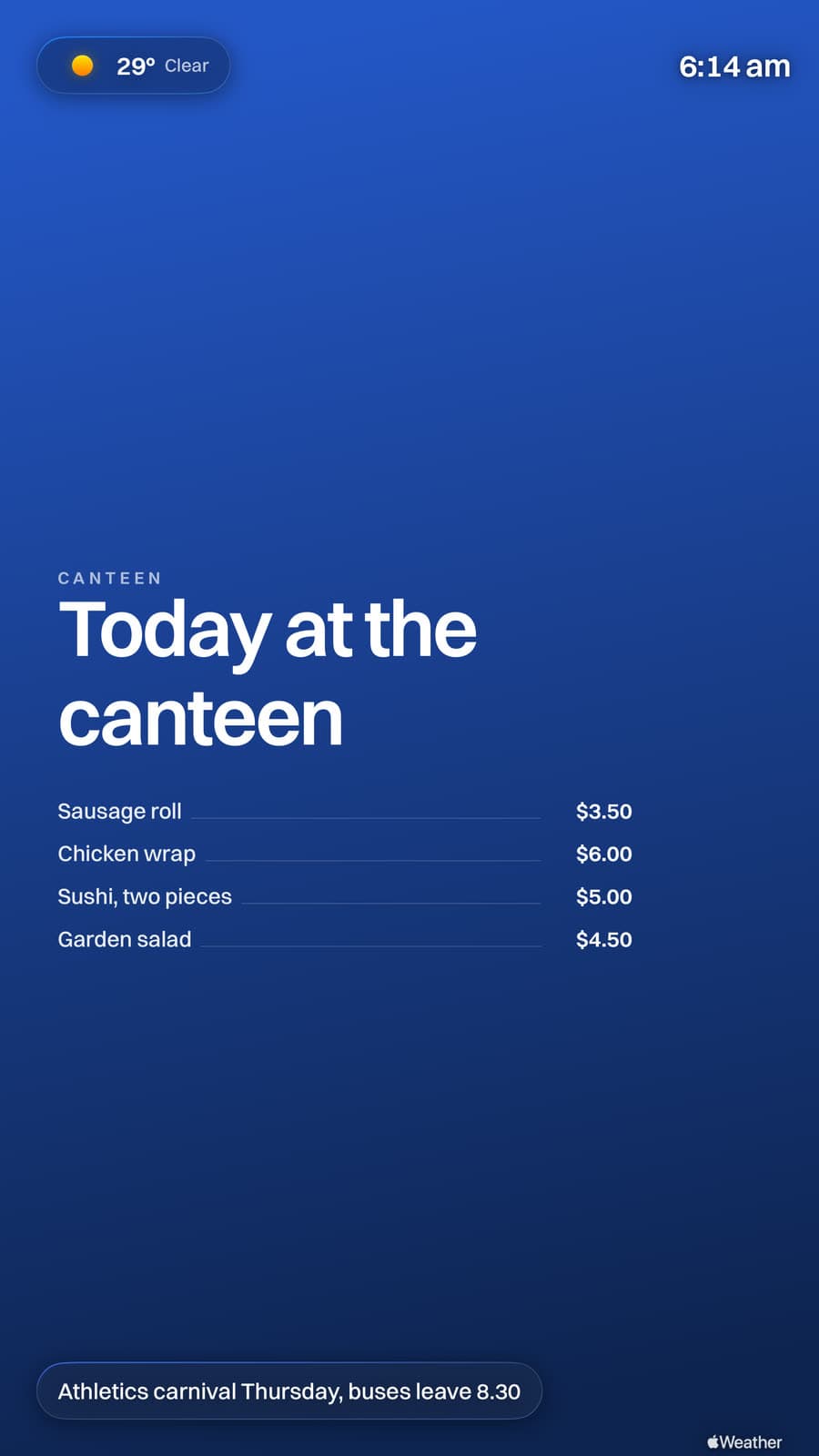
The canteen menu, the carnival running order, this week's notices, and AirPlay ready the moment a teacher needs it.
Portrait
Turn the screen. It follows.
Half the screens in a school foyer are mounted upright. Rotate one and the whole layout reflows to match, type included, off the same gallery as everything else.
No new hardware
Works on any Apple TV you already own. Nothing to buy, nothing to wire in.
Every screen from one dashboard
Update the lobby, the library, every classroom from one place. A gallery and a code for each space.
Account-wide notices
Push one message to every screen at once. Open evenings, closures, reminders, whatever it is, it goes up in a click.
Built for IT & MDM
Roll out across hundreds of Apple TVs with Jamf, Mosyle, Intune or Apple Configurator. Enter a code, or push it as managed config through Apple School Manager.
AirPlay that still works
Anyone casts to the screen in one tap, exactly like Conference Mode. Lessons and meetings never skip a beat.
Free to start
Run your first screen free. After that it's one flat price by screen count, never per screen, never per feature.
See the full feature list, pricing, how flat rate beats per-screen, or the deployment guides for Jamf, Mosyle, Intune and Apple Configurator.
Deployment
Push it to four hundred Apple TVs without touching one.
Billboard is an ordinary tvOS app with managed app configuration, so your MDM installs it and tells each screen which gallery to play, what to call itself and which network to name. Unbox, enrol, done. Nobody walks a remote around the building.
One policy, every screen named after its room
Most MDMs substitute per-device variables, so a single configuration gives every Apple TV its own name while sharing everything else. Point a whole site at one gallery, or a different gallery per building.
<dict>
  <key>dataURL</key>
  <string>https://getbillboard.app/m/XHA8TKJH</string>

  <key>deviceName</key>
  <string>$DEVICENAME</string>

  <key>airplayWifiNetwork</key>
  <string>Riverside-Guest</string>

  <key>airplayTint</key>
  <string>#1E3A8A</string>

  <key>screenRotation</key>
  <integer>0</integer>

  <key>showClock</key>
  <true/>
</dict>
The keys you will actually set
Managed config outranks whatever is set on the device, so a screen that someone has fiddled with comes back into line on its next check-in.
- dataURL
- String
- Which gallery this screen plays
- deviceName
- String
- The name shown on the AirPlay panel
- airplayWifiNetwork
- String
- The network people should join
- airplayTint
- String
- Your brand colour, as hex
- airplayOpacity
- String
- Frosted, medium or glass
- screenRotation
- Integer
- 0 or 90, for upright mounts
- showClock
- Boolean
- Clock in the corner
- logoURL
- String
- Your mark in the top bar
A written guide for every one of these
Buying through Apple Business or School Manager works the same way. Add Billboard to Volume Purchasing and your MDM installs it like anything else.
For the person signing this off
What your IT team will want to know
Whoever runs the Apple TVs is usually the one who has to approve this, so here is the part written for them rather than for the person who wanted a screen in the foyer.
- Does it fit Apple School Manager?
- Yes. Add Billboard to Volume Purchasing in ASM and your MDM installs it like any other app, then managed app configuration points each Apple TV at the right gallery. Jamf School and Mosyle both have step-by-step guides, and there is one for Apple Configurator if you have no MDM at all.
- What does it need on the network?
- Outbound HTTPS to our CDN, and that is the whole list. No inbound rules, no VPN, no static addresses, no per-device accounts. A screen fetches a small JSON manifest on the interval you set and pulls media it has not seen before, so a gallery that has not changed costs a few kilobytes a check.
- How much bandwidth per screen?
- A screen caches what it has already downloaded, so ongoing traffic is the manifest check plus anything new you upload. A fleet on a fifteen-minute check does not register against a school's connection. Set a longer interval on a constrained site and the screens simply update less often.
- Does it keep the Apple TVs updatable?
- Yes, and this is the one people get caught by. An Apple TV parked in Conference Mode mostly sits frozen on that screen, so tvOS updates queue and never land. Billboard is an ordinary app, so your devices keep patching on whatever schedule you set.
- What happens if the network drops?
- The screen carries on playing the last good manifest and the media it has cached, and picks the feed back up when the connection returns. A dropped link is a screen that stops updating, not a screen that goes black in a reception area.
- Who can change what?
- Galleries are separate, each with its own unguessable code, so the drama department cannot alter the front office screens. Apps like weather, boards and alerts can be switched off account-wide, which removes them from every editor at once rather than relying on people being told.
- What do you hold about students?
- Nothing about them. There are no student records, no accounts on the devices and no analytics on the TVs. What we store is the media you upload and the settings for each gallery. A screen is a read-only consumer of a manifest, so nothing flows back from the wall.
Frequently asked questions
- How much does digital signage for schools cost?
- Two screens are free. After that it's a flat monthly or annual price set by how many screens you run, never per screen and never per feature. Current tiers are on the pricing page.
- Do we need to buy special hardware?
- No. It runs on the standard Apple TVs your school probably already owns, so there's no signage player to buy or maintain.
- Can we manage many screens across a campus?
- Yes. Give each space its own gallery and manage the lot from one dashboard. For bigger rollouts, deploy with Jamf, Mosyle, Intune or Apple Configurator.
- Can we show emergency or all-school notices?
- Yes. An account-wide notice banner drops across the top of every screen at once, and you can toggle it on or off instantly.
- Does AirPlay still work for teachers?
- Yes. AirPlay carries on exactly as before, so staff can still cast to the display whenever they need to.
- Do you work with Australian schools?
- Yes. Schools across Australia use it, and we bill in Australian dollars. All it needs is an Apple TV and Wi-Fi, so it works just as well for Australian primary and secondary schools as for those overseas.
Light up every screen in your school
Start free on one screen and have your first gallery running in minutes.
Get started free