Features

Everything your screens can do.

In more detail than the front page gives it. Every screen here is a real capture from the Apple TV app, and each feature appears once.

Photos and video

Fullscreen, crossfaded, and mixed freely in the same gallery. Video plays through in full or gets cut to a length you set, with or without sound, and anything arriving below Full HD is flagged on the way in rather than discovered on the wall.

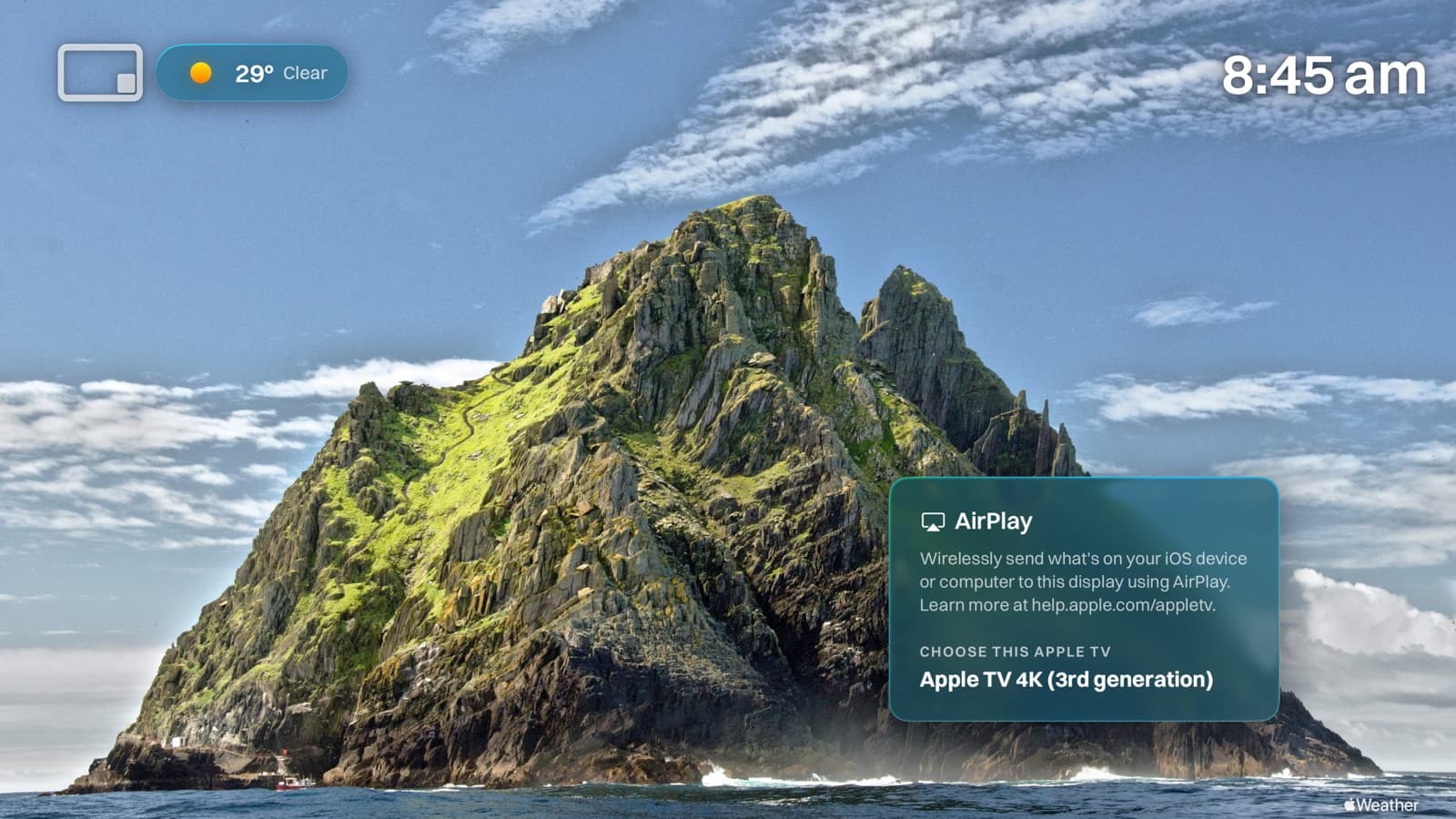
An Apple TV showing a full-screen photograph with nothing over it

Portrait mounts

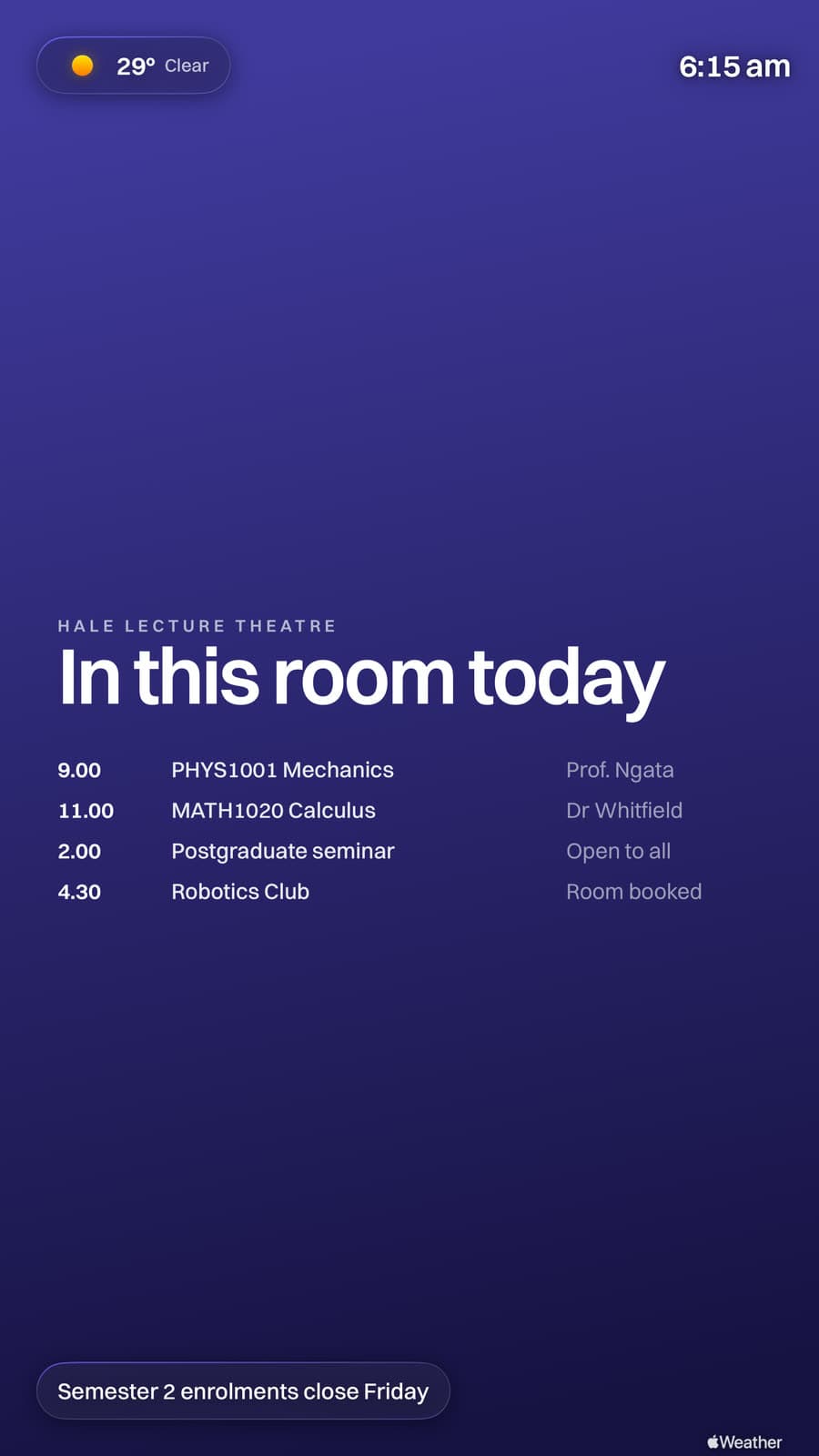
Turn the screen and the whole layout follows, type included. Half the screens in a foyer are mounted on their side, and this is not a second gallery or a cropped copy of the first one. The same content, laid out for the shape it is on.

A Billboard lecture timetable on an Apple TV mounted in portrait

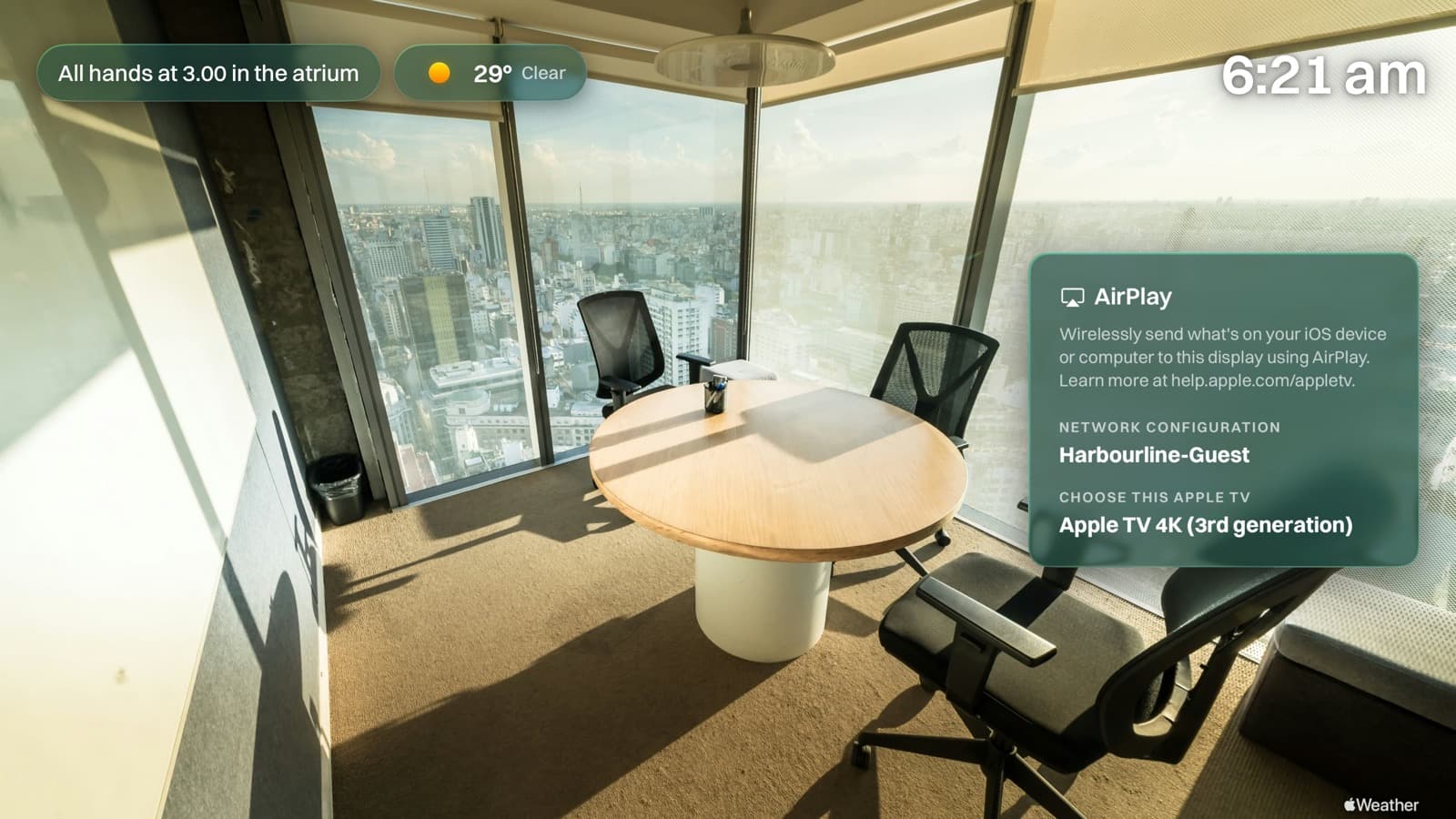
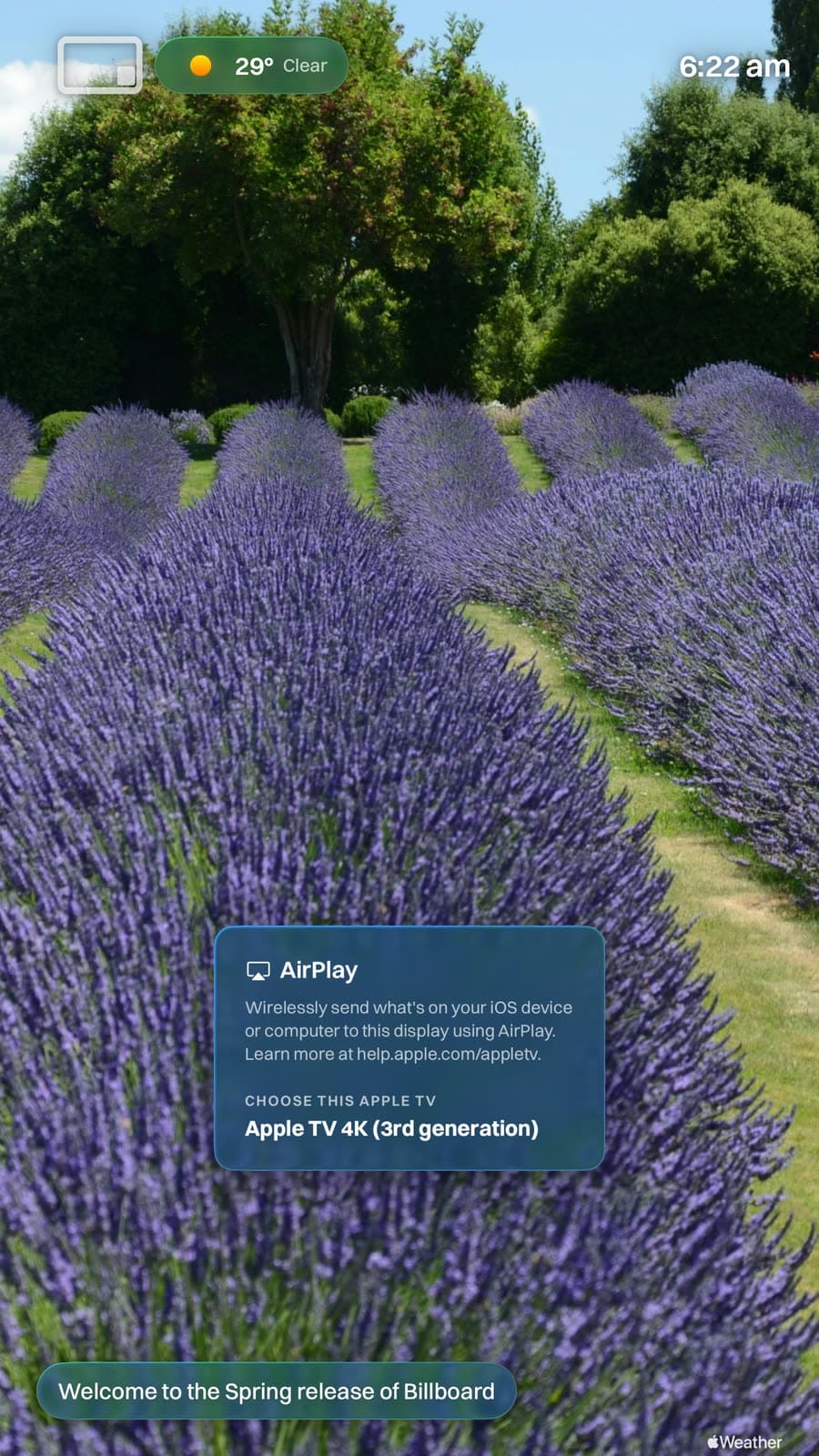
AirPlay that still works

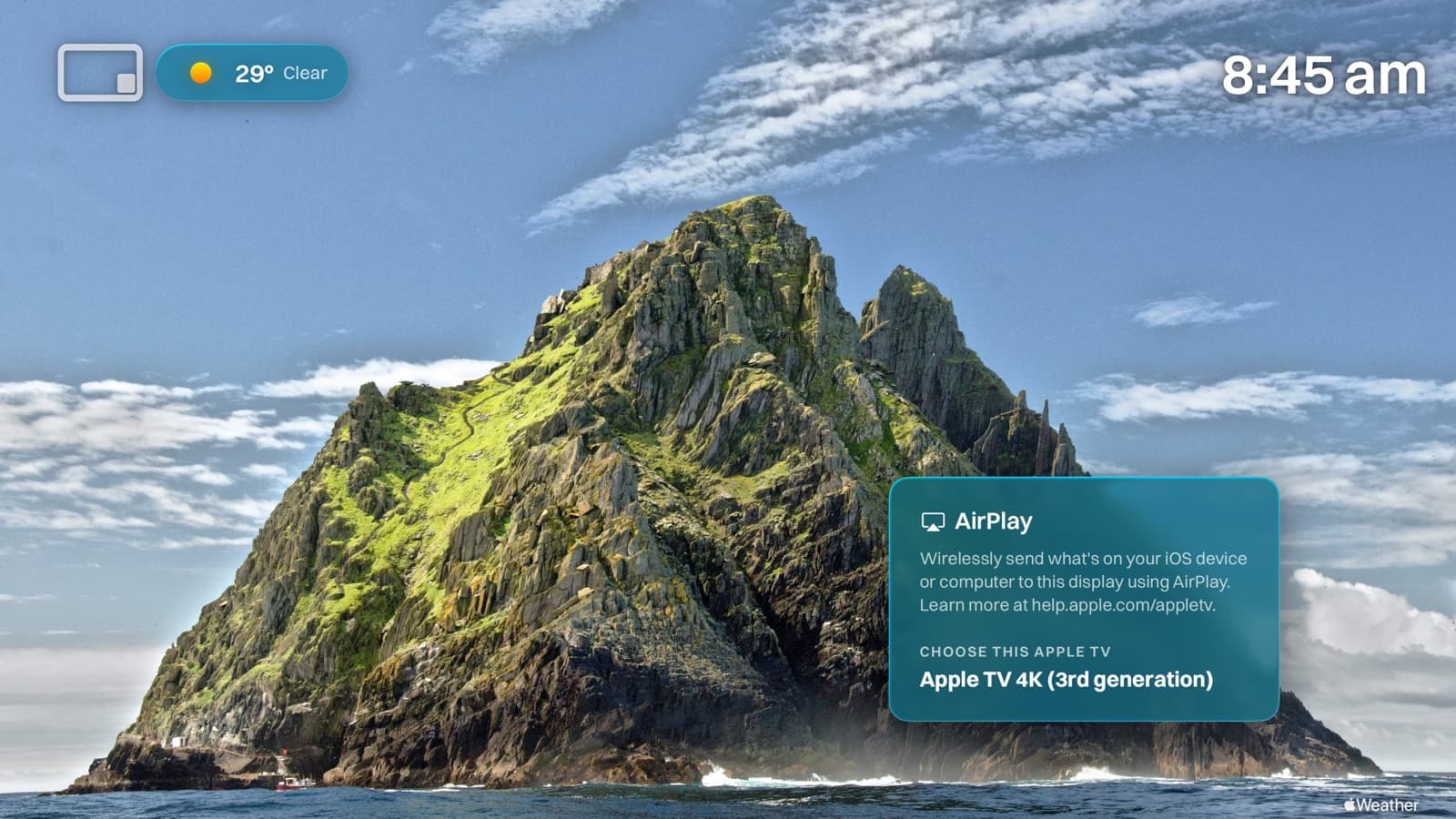
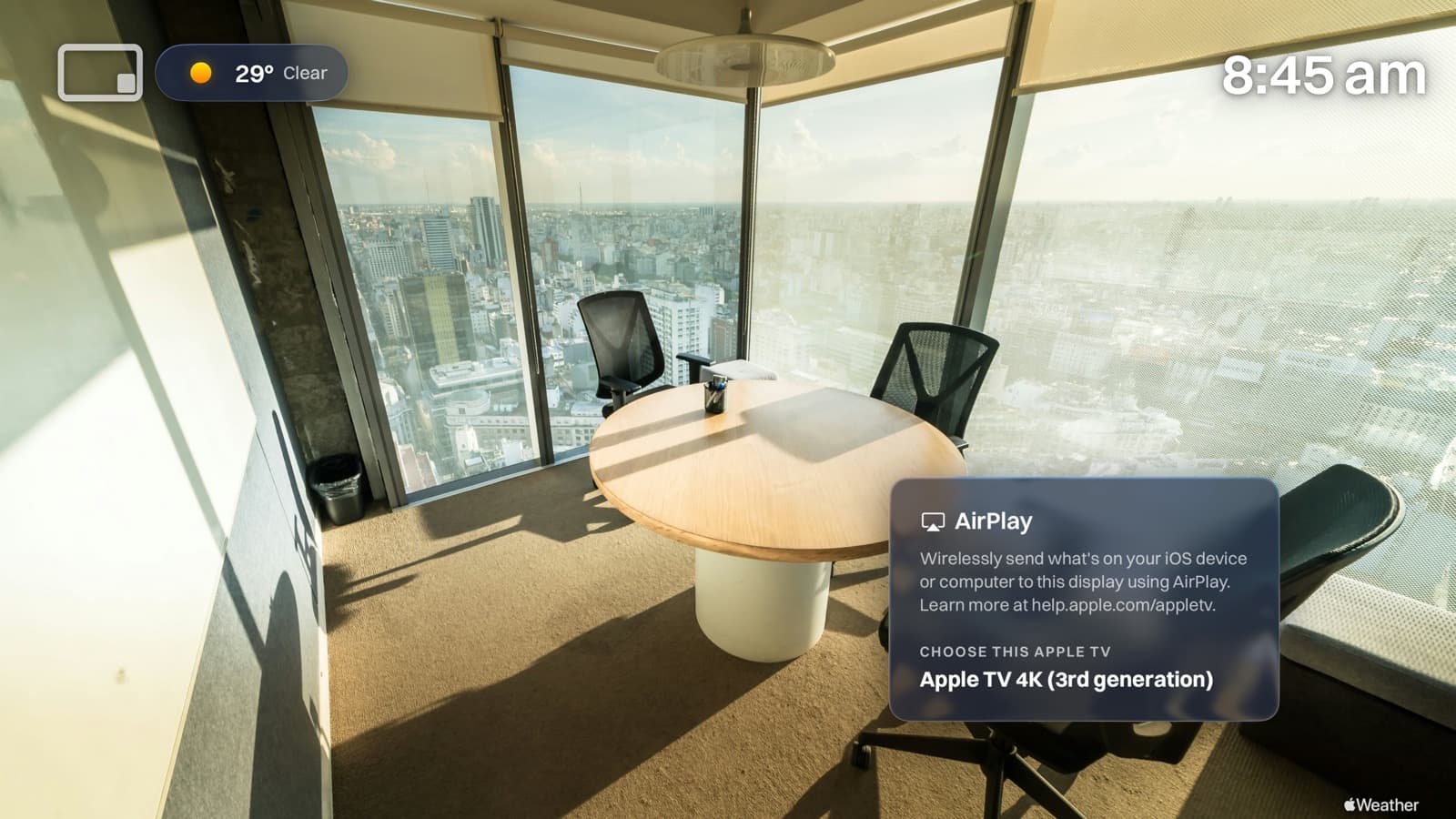
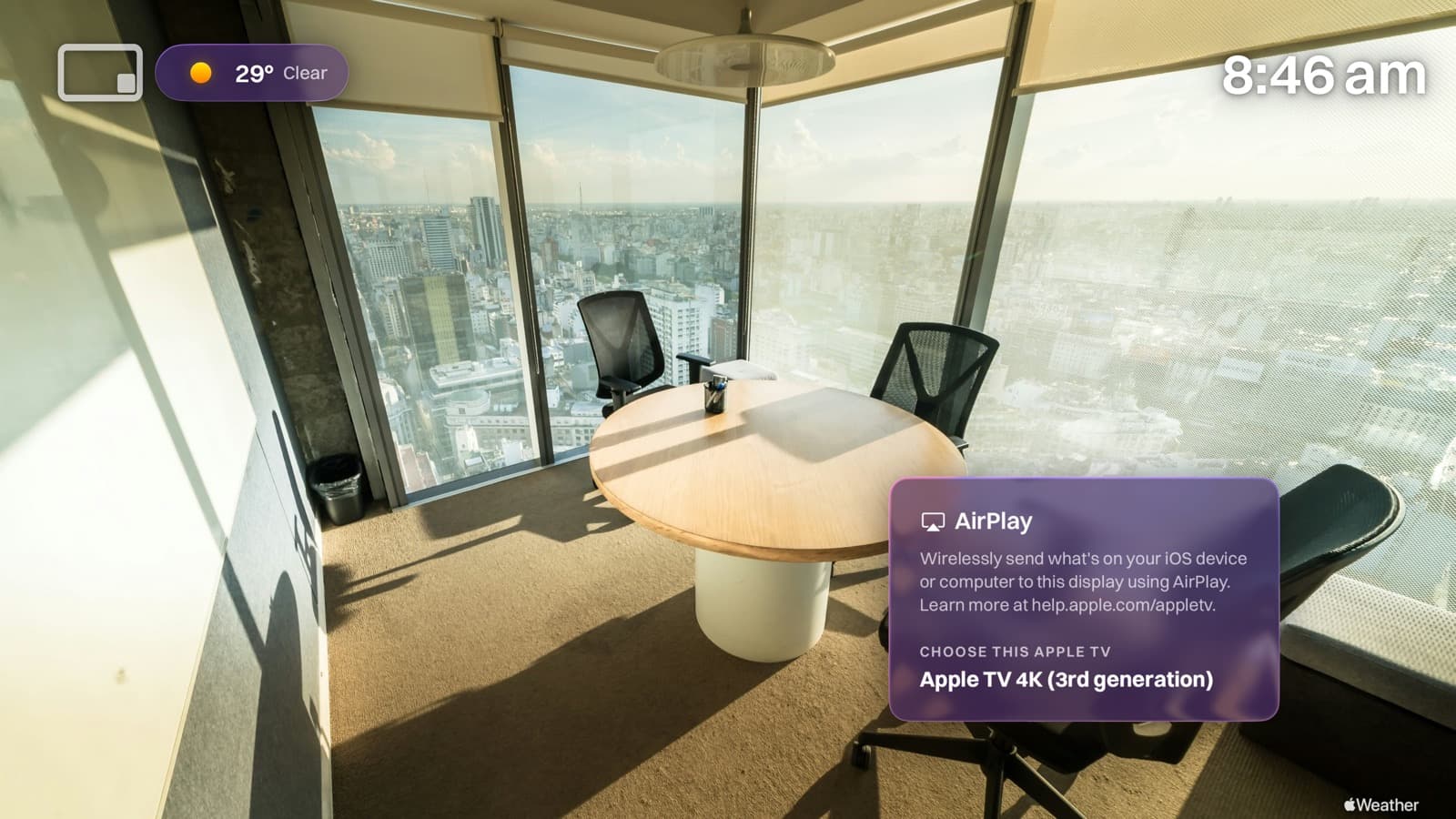
The panel names the network to join and this Apple TV, so anyone casts in one tap without asking anyone. It drifts between corners on its own so nothing burns in, and it can hide itself on video or while a board is up. Set per gallery, not once for everything.

An Apple TV in a boardroom showing the AirPlay panel

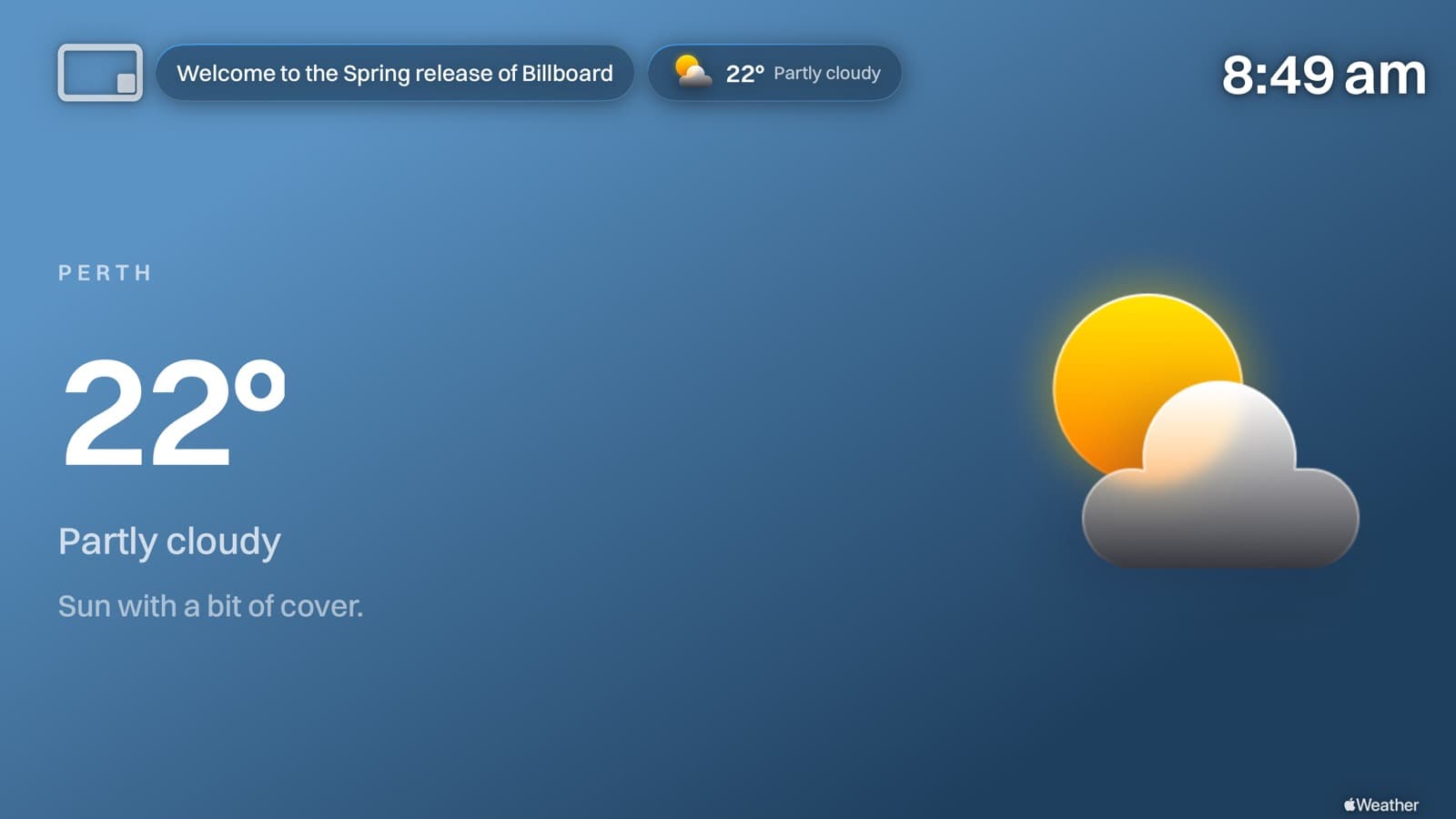
Weather

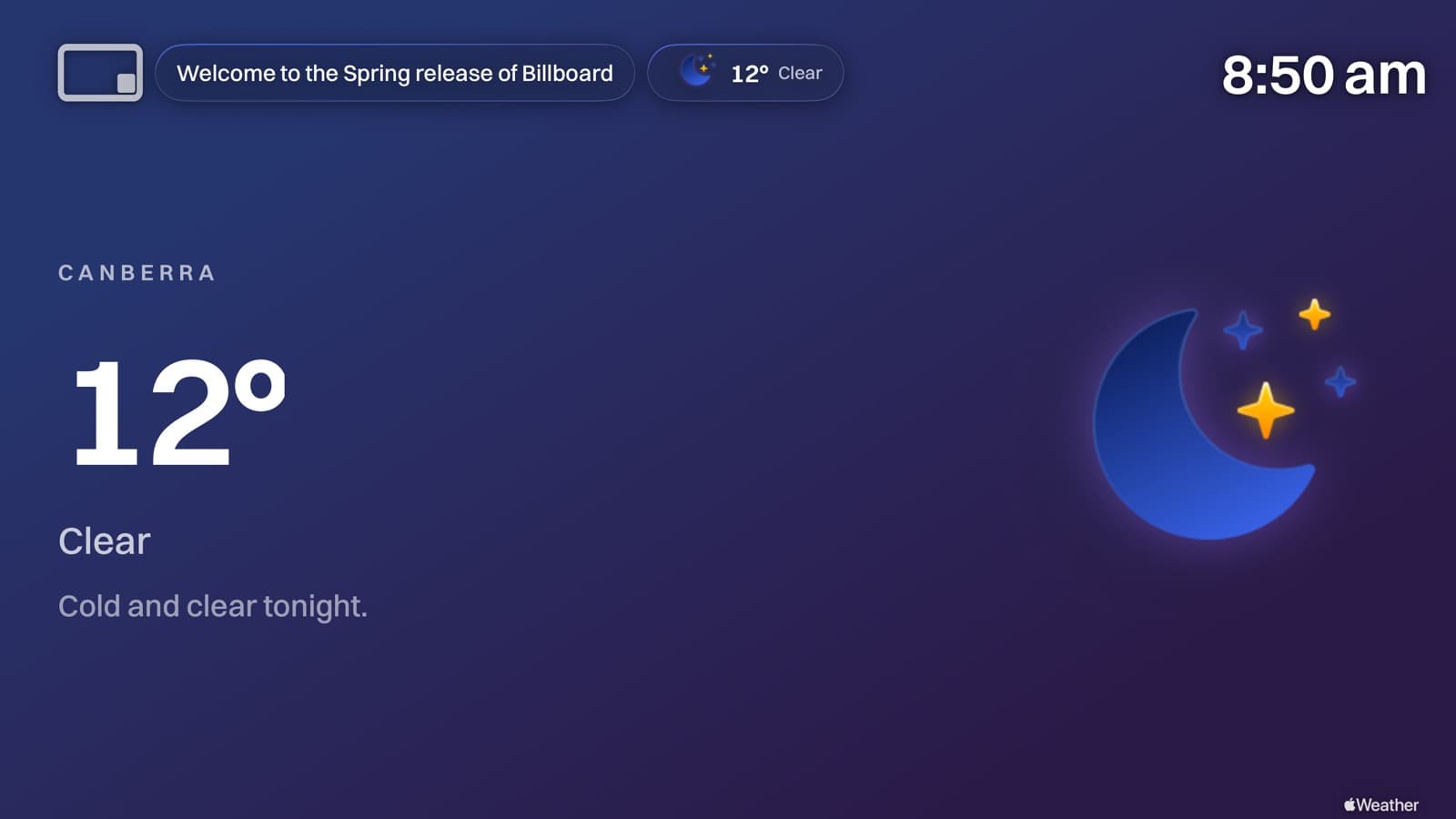
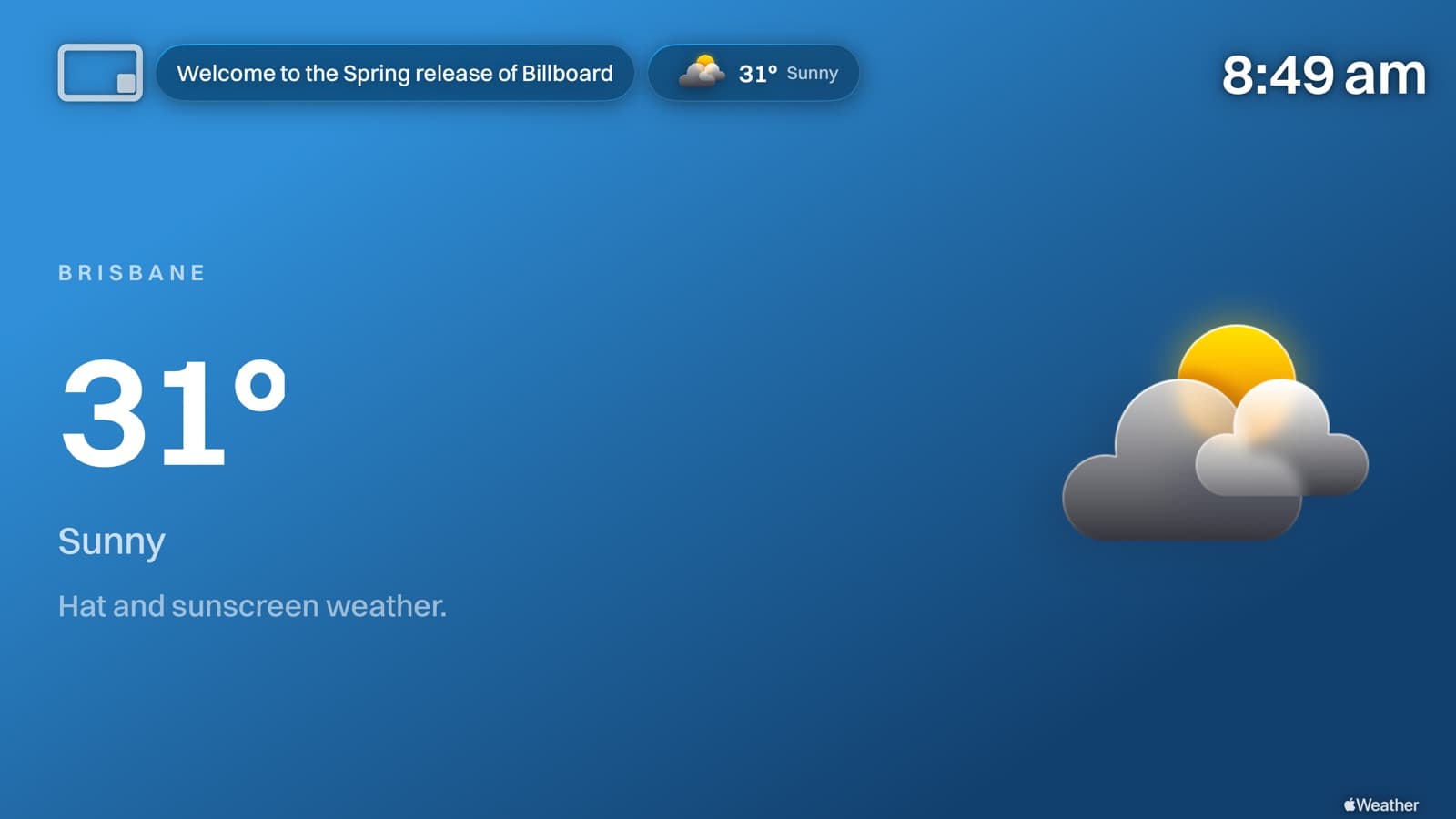
Local conditions from Apple Weather, on a background the app draws from the conditions themselves. Blue sky when it is clear, grey when it is not, blue into purple after dark. It can ride in the top bar as a chip, take a turn of its own, or both.

The Billboard weather screen at night, on a blue to purple gradient

Captions

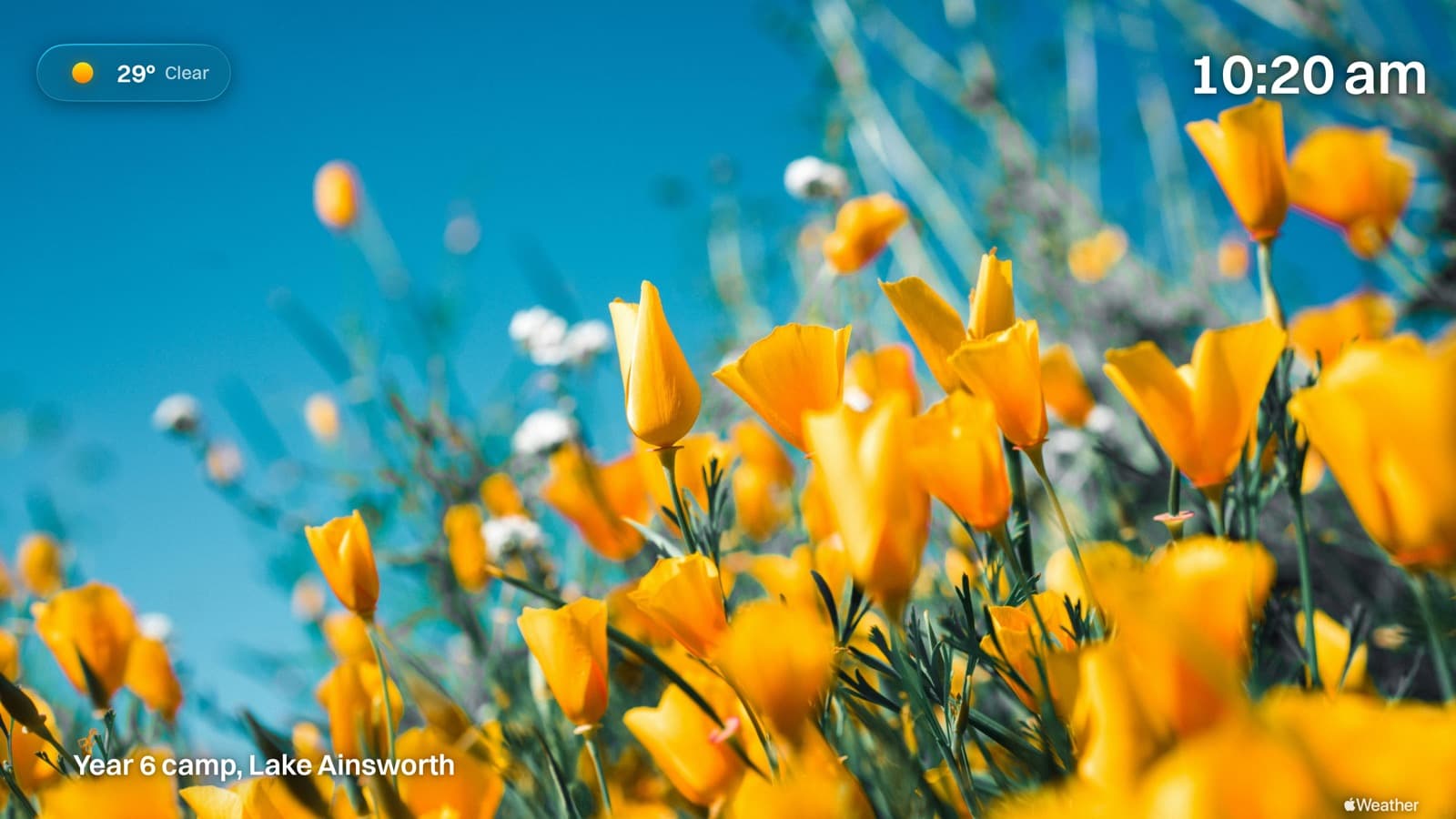
Per item rather than per gallery. Name the team, the trip or the year group and it appears as that photo comes up, then fades, so the picture gets the rest of its turn to itself.

An Apple TV showing a photograph with a caption naming where it was taken

A screen with nothing on it

Switch off the notice, the clock, the weather chip, or all of it, and the photograph gets the whole screen. Useful in a gallery, a reception, or anywhere the furniture would be the only thing dating the picture.

A board with no notice, clock or weather over it

Emergency alerts1

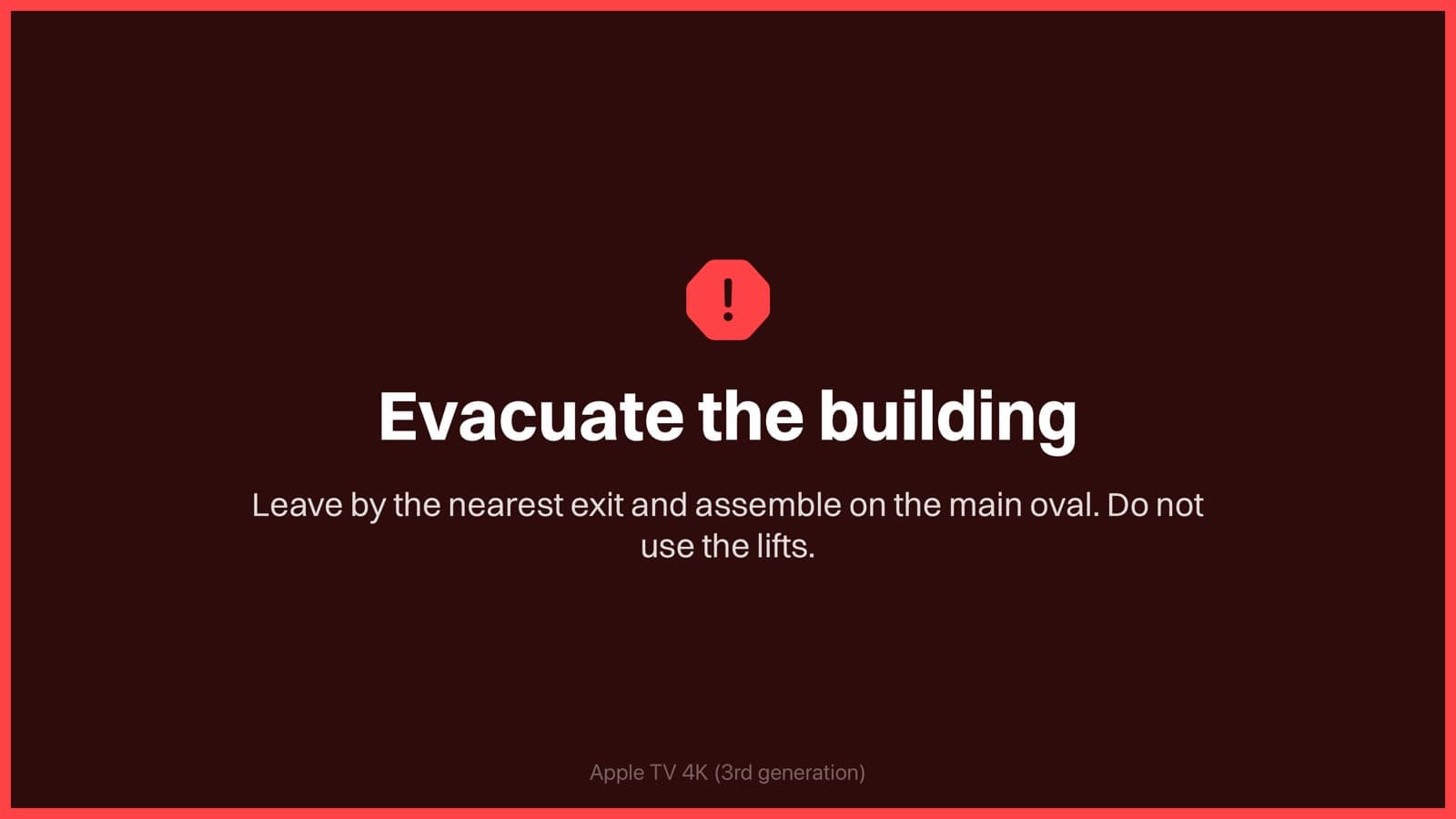
An alert does not sit in a corner of the slideshow, it replaces it. Send one from the dashboard and every screen in the building is carrying it within a minute, at a size you can read from the far end of a corridor. There is no dismiss button on purpose, because nobody is standing at a foyer screen. It clears from the dashboard or lapses at the expiry you set.

An Apple TV showing a full-screen evacuation alert in red

On the wall

Build it in the browser, read it from the far end of the room.

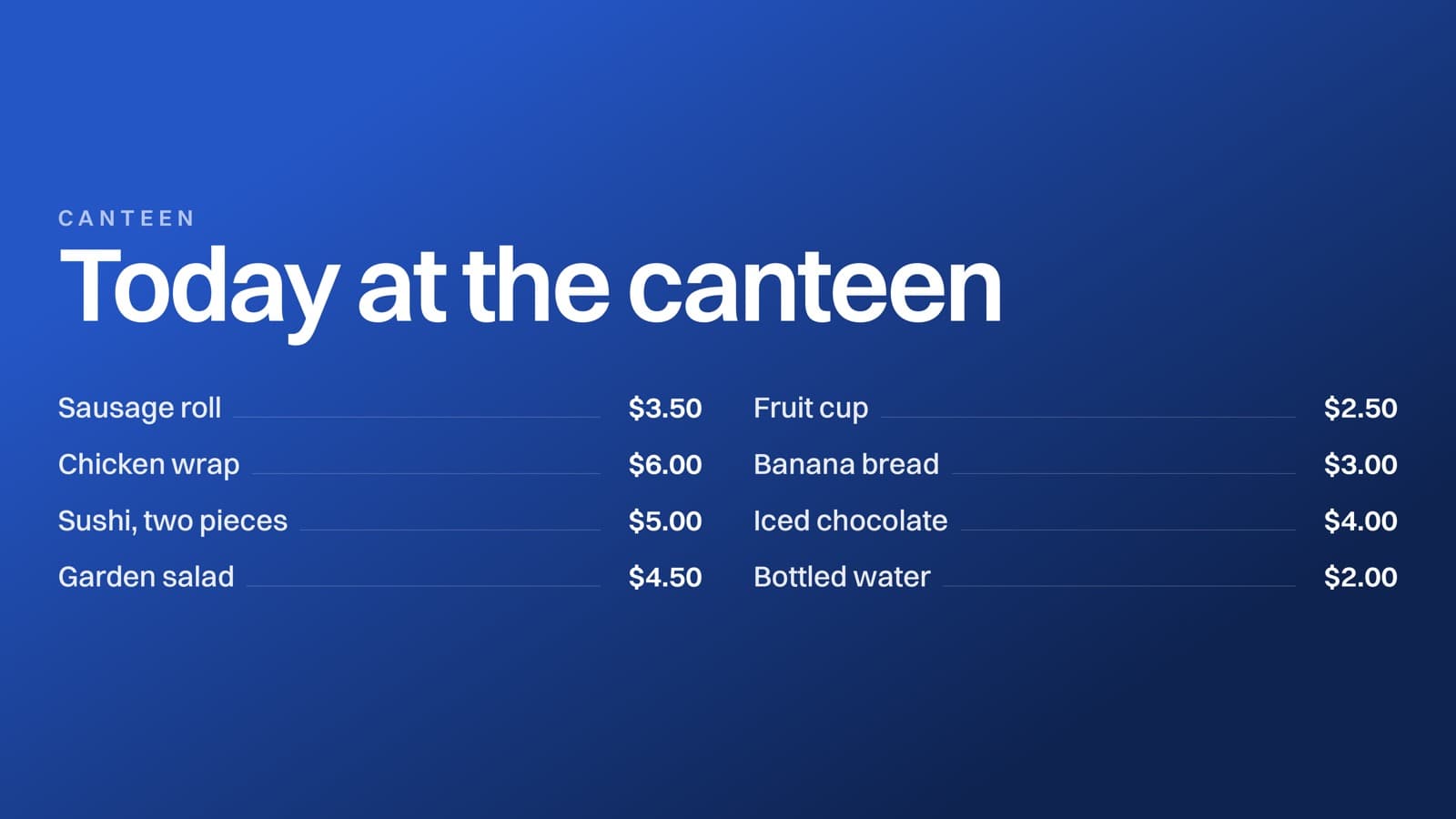
Type the content and it lands on the screen laid out properly, at the right size, with the text picking whichever ink reads best against the background you chose.

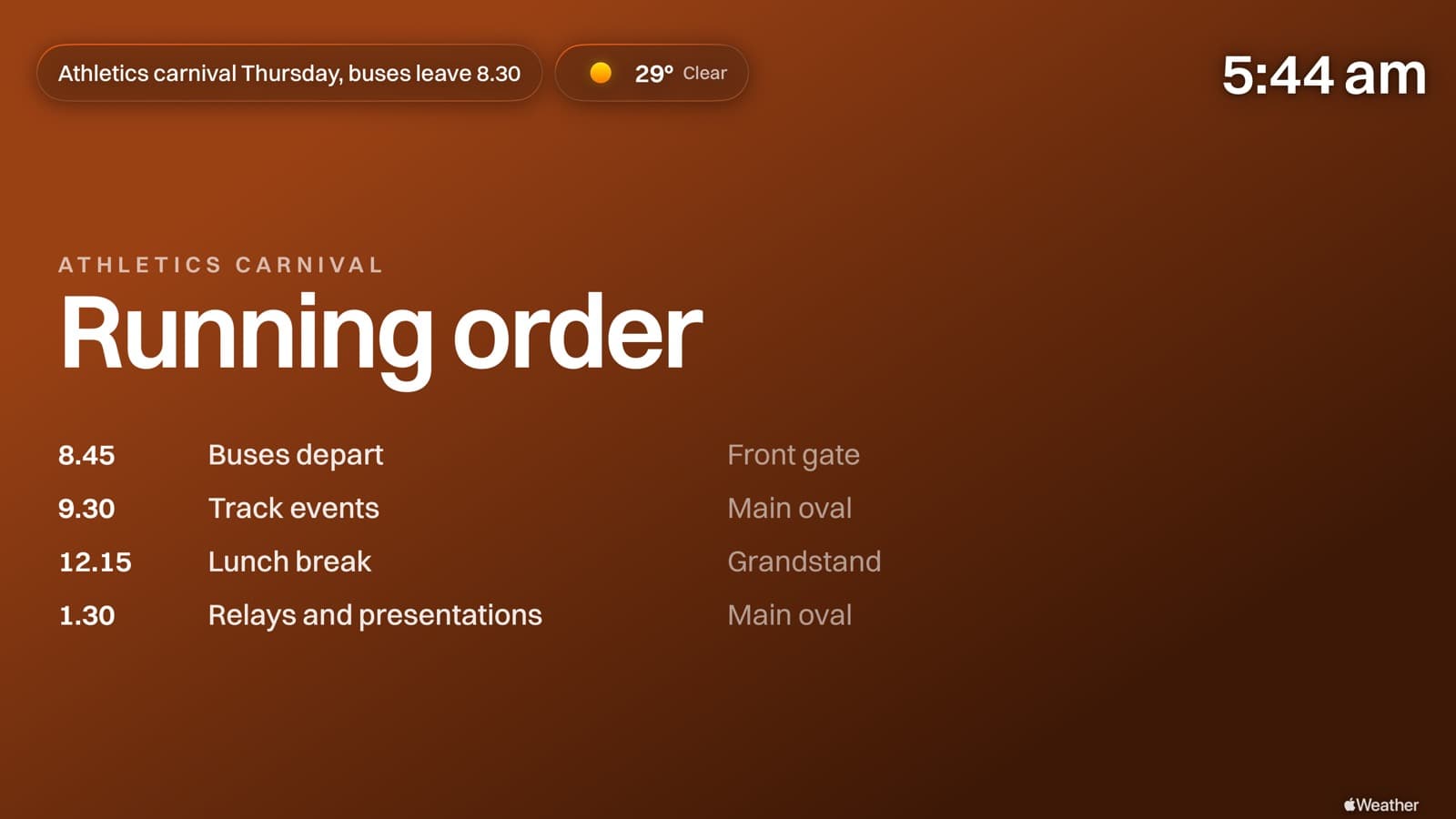
The canteen, the carnival, and the notices that never make it home in a bag.

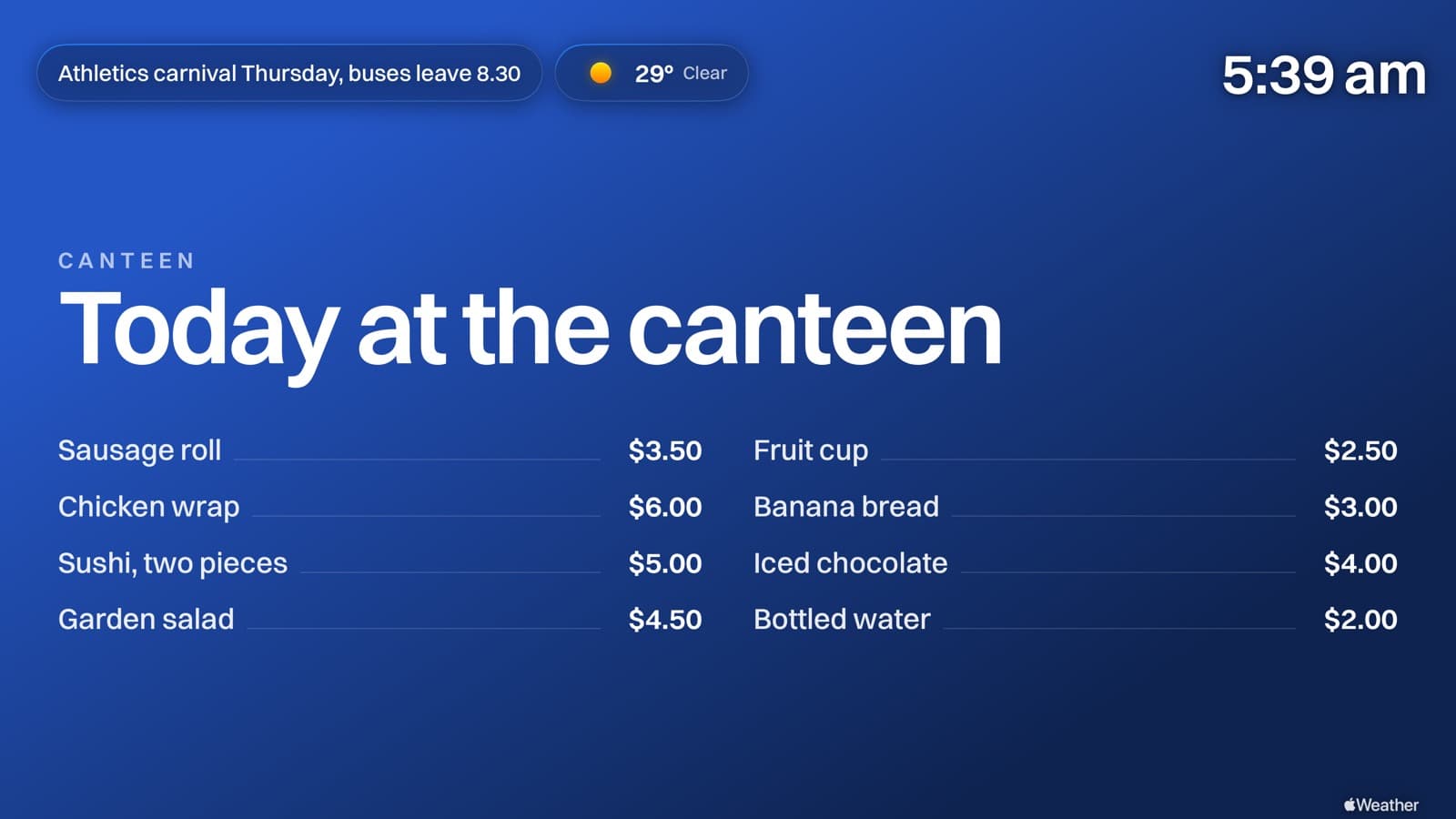
A Billboard canteen menu on an Apple TV, eight items with prices in two columns

Canteen menu

Your colour, your glass, your orientation.

Every frame here is a capture from the Apple TV app itself, so what you set is what goes on the wall.

Panel opacity

As bold or as barely there as you like.

Frosted reads from the back of a hall. Glass gets out of the way of the photograph. Medium sits between the two.

The Billboard AirPlay panel at three levels of opacity
FrostedMediumGlass

Brand tint

The panel takes your colour.

Any hex you like, applied to the glass rather than painted behind it, so the photograph still comes through.

The Billboard AirPlay panel, tinted to a brand colour

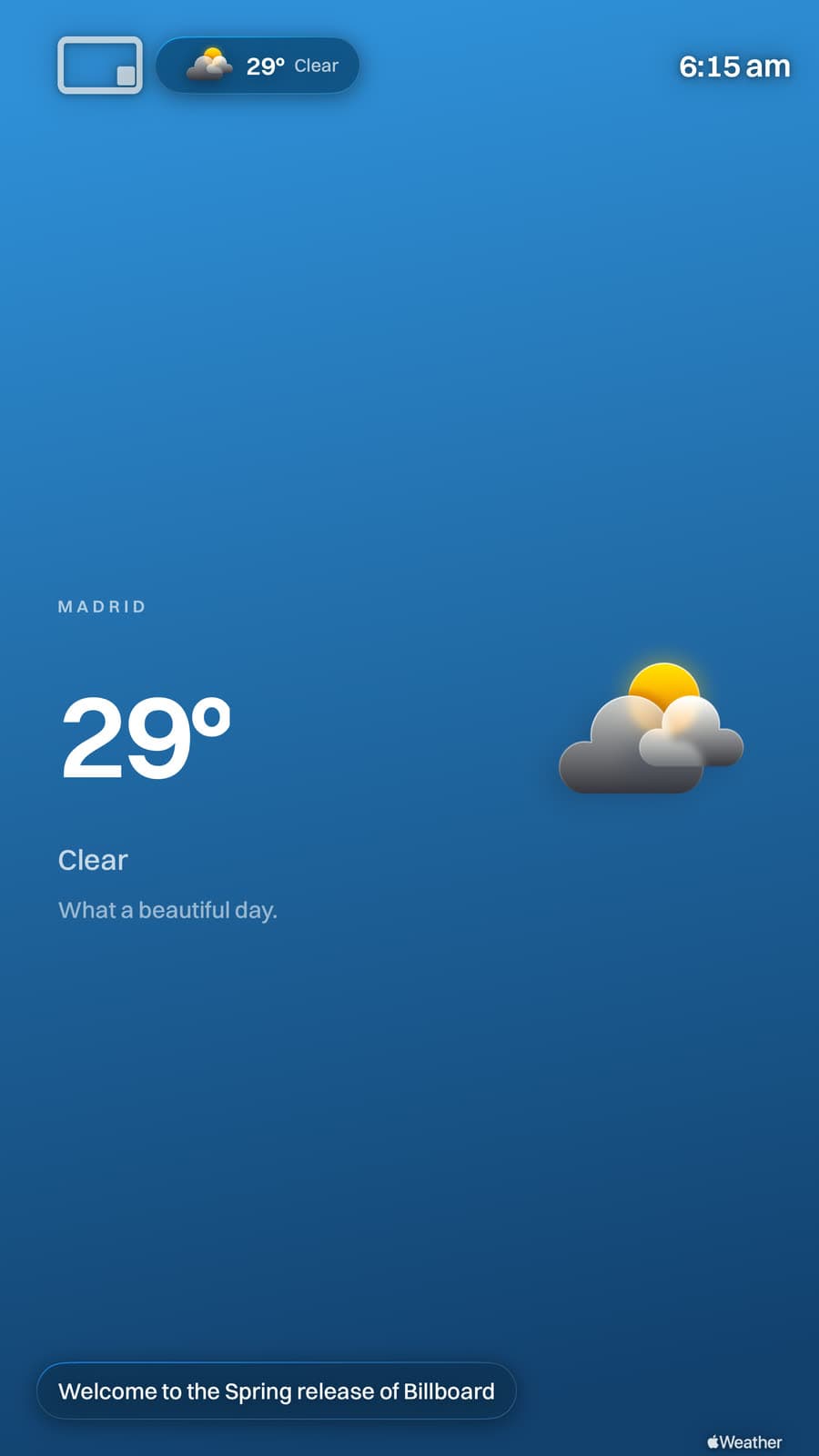
Weather

It looks like the sky it is describing.

Clear, overcast, storming, after dark. The forecast comes from Apple Weather and the screen colours itself to match. Nothing to choose.

The Billboard weather screen on a clear day, on a blue sky gradient

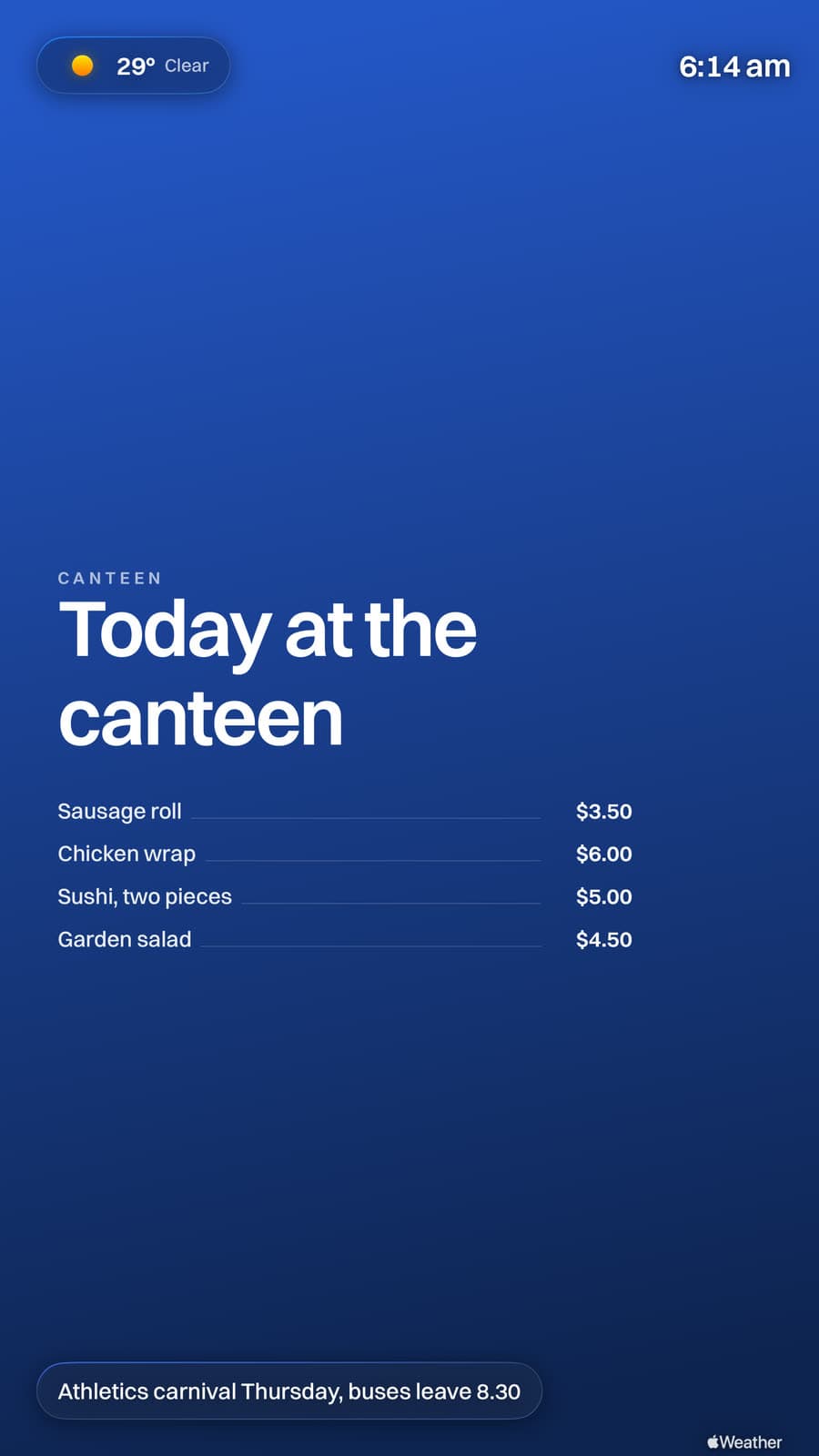
Portrait

Turn the screen. It follows.

Mount it upright and everything reflows to match, type included. No second gallery, no cropped photos.

A Billboard canteen menu on an Apple TV mounted in portrait

Switch on what you want. Switch off what you do not.

Everything beyond the photos is an app rather than a checkbox buried in settings. An administrator turns one off and it leaves the screen and everyone's editor at the same time, so a feature you have decided against stops being a thing anyone has to be told not to use.

Media

Photos and video, crossfaded

Boards

Menus, timetables, notices

Weather

Local conditions, live

Clock

The corner time

Notice

One line across the top

Alerts

Full-screen takeover

Unsplash

Free stock photography

Calendar

Coming soon

What is on, from your calendar

Google Drive

Coming soon

Import from Drive

OneDrive

Coming soon

Import from OneDrive

Canva

Coming soon

Bring in a design

Behind it

Every screen, from any browser.

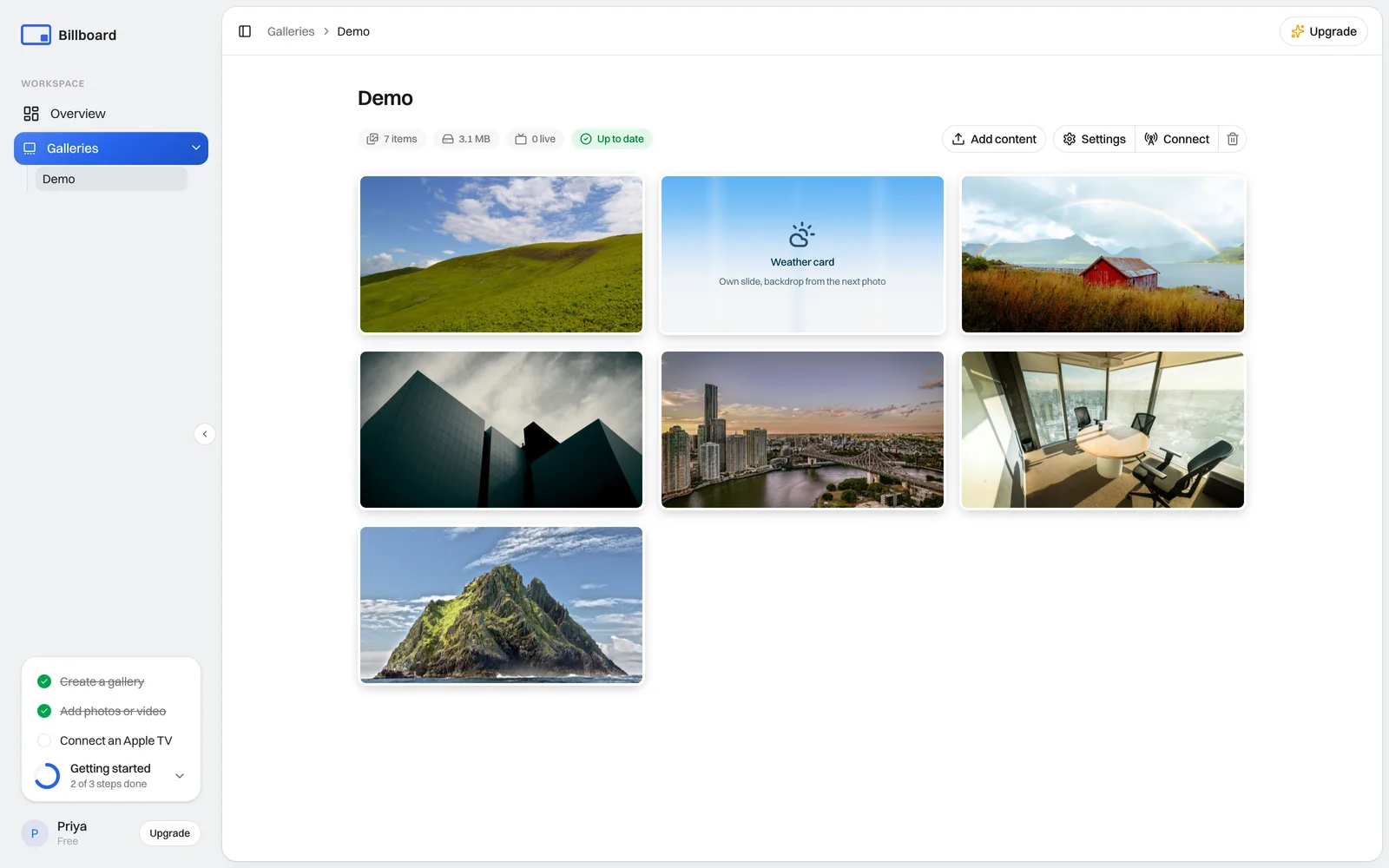
A gallery per space, each with its own code. Drop in images and video and they are resized and compressed on the way in. Change something here and the screens catch up on their own.

Take the dashboard tour
The Billboard dashboard showing a gallery of uploaded media

In the browser

  • Unlimited galleries. One per space, whether that is the lobby, the library or every classroom, each with its own code.
  • Upload and forget. Images and video are resized and compressed for crisp, light playback, with a warning if anything arrives below Full HD.
  • Schedule content. How long each item shows, and start and end windows for anything that should only run for a while.
  • Live monitoring. How many screens are playing right now, and what each gallery weighs.
  • Instant updates. Screens refresh on your schedule, from every few minutes to weekly, with a countdown so you know when.
  • Per-gallery panel. The AirPlay panel's text, network name, movement and visibility, set per gallery rather than once for everything.

At 2am on a Sunday

  • Locked down and steady. Guards against accidental exit, hides settings, stays awake, and picks itself back up after a power cut.
  • Nothing burns in. The panel drifts between corners and the top bar shifts by a pixel at a time, so no element sits still for months.
  • Keeps playing offline. A dropped connection leaves the screen showing what it already has, and it catches up quietly once the network returns.
  • On-screen clock. Read from each Apple TV's own clock, so it is right on every screen without anything to sync.

Deployment

Push it to four hundred Apple TVs without touching one.

Billboard is an ordinary tvOS app with managed app configuration, so your MDM installs it and tells each screen which gallery to play, what to call itself and which network to name. Unbox, enrol, done. Nobody walks a remote around the building.

One policy, every screen named after its room

Most MDMs substitute per-device variables, so a single configuration gives every Apple TV its own name while sharing everything else. Point a whole site at one gallery, or a different gallery per building.

Managed app configuration
<dict>
  <key>dataURL</key>
  <string>https://getbillboard.app/m/XHA8TKJH</string>

  <key>deviceName</key>
  <string>$DEVICENAME</string>

  <key>airplayWifiNetwork</key>
  <string>Riverside-Guest</string>

  <key>airplayTint</key>
  <string>#1E3A8A</string>

  <key>screenRotation</key>
  <integer>0</integer>

  <key>showClock</key>
  <true/>
</dict>

The keys you will actually set

Managed config outranks whatever is set on the device, so a screen that someone has fiddled with comes back into line on its next check-in.

dataURL
String
Which gallery this screen plays
deviceName
String
The name shown on the AirPlay panel
airplayWifiNetwork
String
The network people should join
airplayTint
String
Your brand colour, as hex
airplayOpacity
String
Frosted, medium or glass
screenRotation
Integer
0 or 90, for upright mounts
showClock
Boolean
Clock in the corner
logoURL
String
Your mark in the top bar

No new hardware

Any Apple TV you already own. Nothing to buy, nothing to wire in, no media player under the desk.

AirPlay preserved

AirPlay still works exactly like Conference Mode. Everyone keeps casting in one tap.

Your own content

Your photography, your colours, your wording. Nothing of ours on the screen unless you put it there.

Flat pricing

Free on two screens forever, then one price by screen count rather than a fee per screen.

Put something worth looking at on every screen.

Free on two Apple TVs, forever. The app is free on the App Store.

  1. 1Emergency alerts are not an emergency broadcast system. Billboard alerts are a way to put a message on your own screens. They are not a substitute for a fire alarm, a public address system or any other life-safety equipment, and they should not be relied on in place of one or used alongside official emergency warnings. In an emergency call 000, or your country's emergency number.