A tour of your dashboard
A quick orientation to the Billboard dashboard: the sidebar, your galleries, a gallery's tabs, and where account and display settings live.
Last updated 26 July 2026
You run all of Billboard from one web dashboard. Nothing to install. Here's where everything lives, so you can find your way around fast.
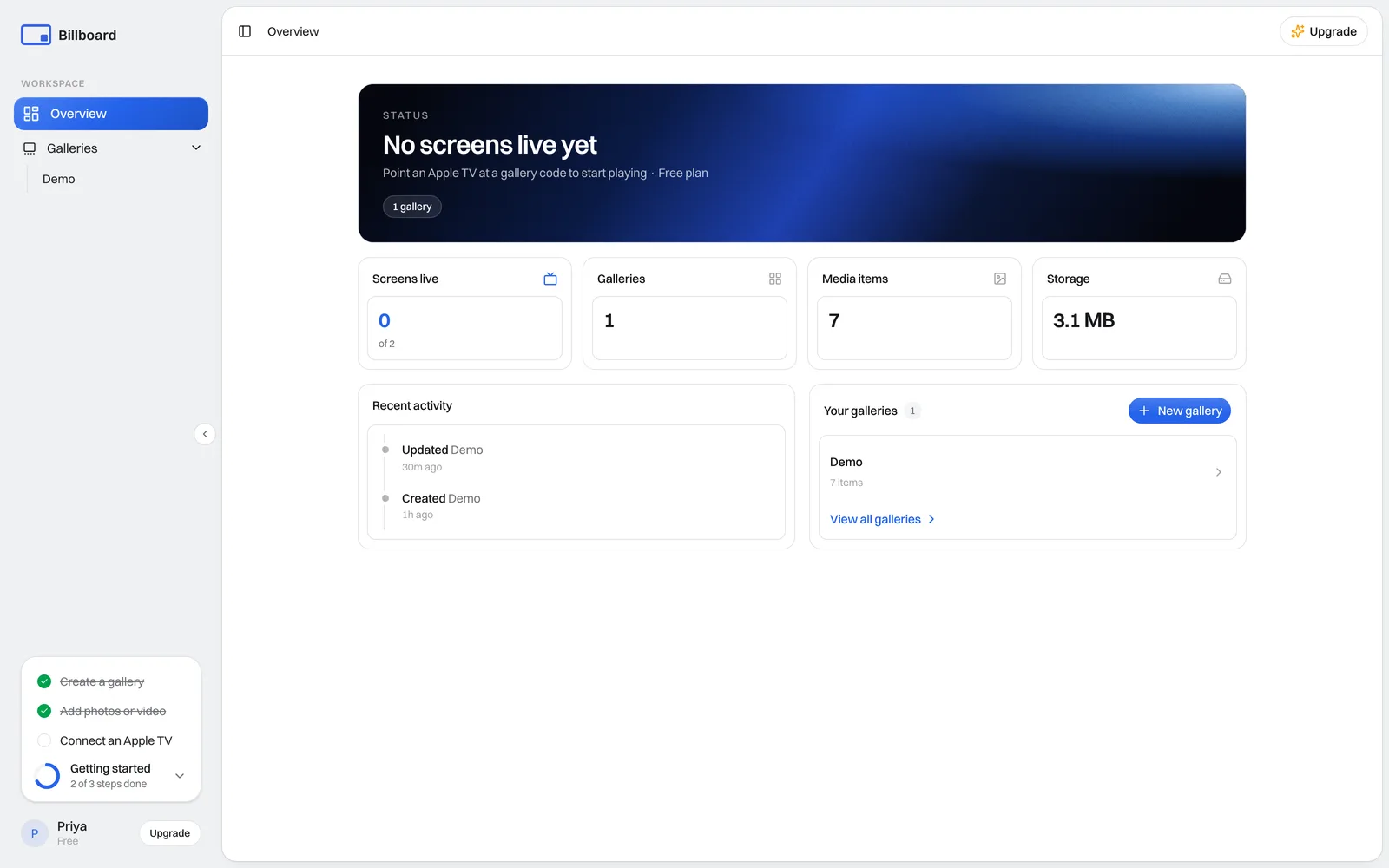
The sidebar
Down the left is your navigation:
- Overview: where you land. The state of everything at a glance.
- Galleries: expand it to see every gallery you've made and jump straight to one. A gallery holds the media and settings for a set of screens, and it's the heart of Billboard.
- Your account (bottom-left): your name and current plan. Open it for Settings, to send Feedback, or to sign out.
- Upgrade, top-right and beside your name, whenever your plan has room to grow.
- A Getting started checklist, which sits above your account until you've made a gallery, added media and connected an Apple TV. It disappears once all three are done.
Overview
The Overview answers "is everything running?" without you opening anything:
- A status banner across the top, which tells you how many screens are playing right now, or that none are live yet.
- Four tiles: screens live, galleries, media items and storage used.
- Recent activity, a running list of what changed and when, including the last time each screen checked in. Handy for spotting a display that stopped reporting.
- Your galleries, with item counts, and New gallery to make one. See Getting started.
A gallery's code, the one people type on an Apple TV, isn't shown here. It lives in the gallery's Connect panel, so putting a screen live is always something you chose to do.
Inside a gallery
Open a gallery and its media is the page. Along the top are the gallery's name, a few pills showing item count, size and how many screens are live, and a countdown to the next time your screens pick up changes. The rest is buttons:
- Add content: upload images and video, or add a weather card. See Upload and organise media.
- Settings: how this gallery plays: item timing, the on-screen clock, the AirPlay panel, screen orientation, video behaviour and the refresh interval. See Customise the display.
- Connect: where you put a screen live. Enter the code the Apple TV is showing, and it starts playing this gallery. The panel also holds the gallery's own code and manifest URL, which is what a fleet deployed by MDM points at. Keeping all of that behind a button means a screen only goes live when you meant it to.
Account and dashboard settings
Open Settings from the account menu for everything that isn't tied to one gallery:
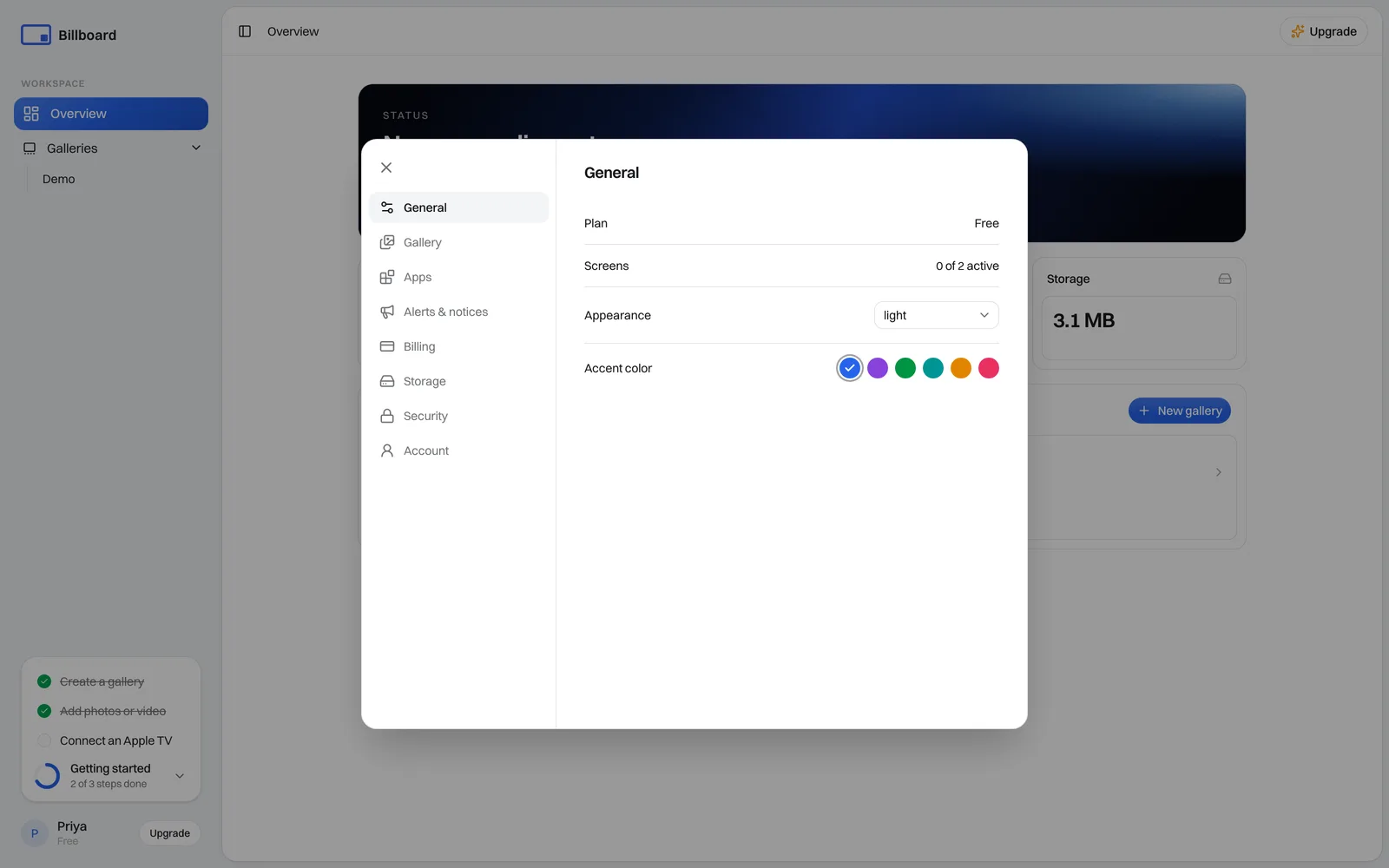
- General: your plan at a glance, plus dashboard appearance (light/dark) and accent colour.
- Gallery: the account-wide screen notice, whether your logo shows on screens, and the Keep original photos option.
- Apps: account-wide extras. Weather lives here, where you set your location and switch the chip and the full-screen slide on.
- Alerts & notices: raise or clear a full-screen emergency alert. Kept in its own section on purpose, well away from anything routine.
- Billing: your plan, payment method and invoices.
- Storage: how much space you're using and how to reclaim it.
- Security: password and sign-in.
- Account: your name, organisation, email and account deletion.
Each of these has its own guide. See Dashboard appearance and settings, Storage and original photos, and Plans, billing & screen limits.
Need a hand? Email support@getbillboard.app.