Dashboard appearance and settings
Switch the dashboard between light and dark, choose an accent colour, add a display photo, and find your way around the Settings panel.
Last updated 8 July 2026
Your dashboard preferences and account options all live in one Settings panel. Open it from the account menu at the bottom-left of the sidebar.
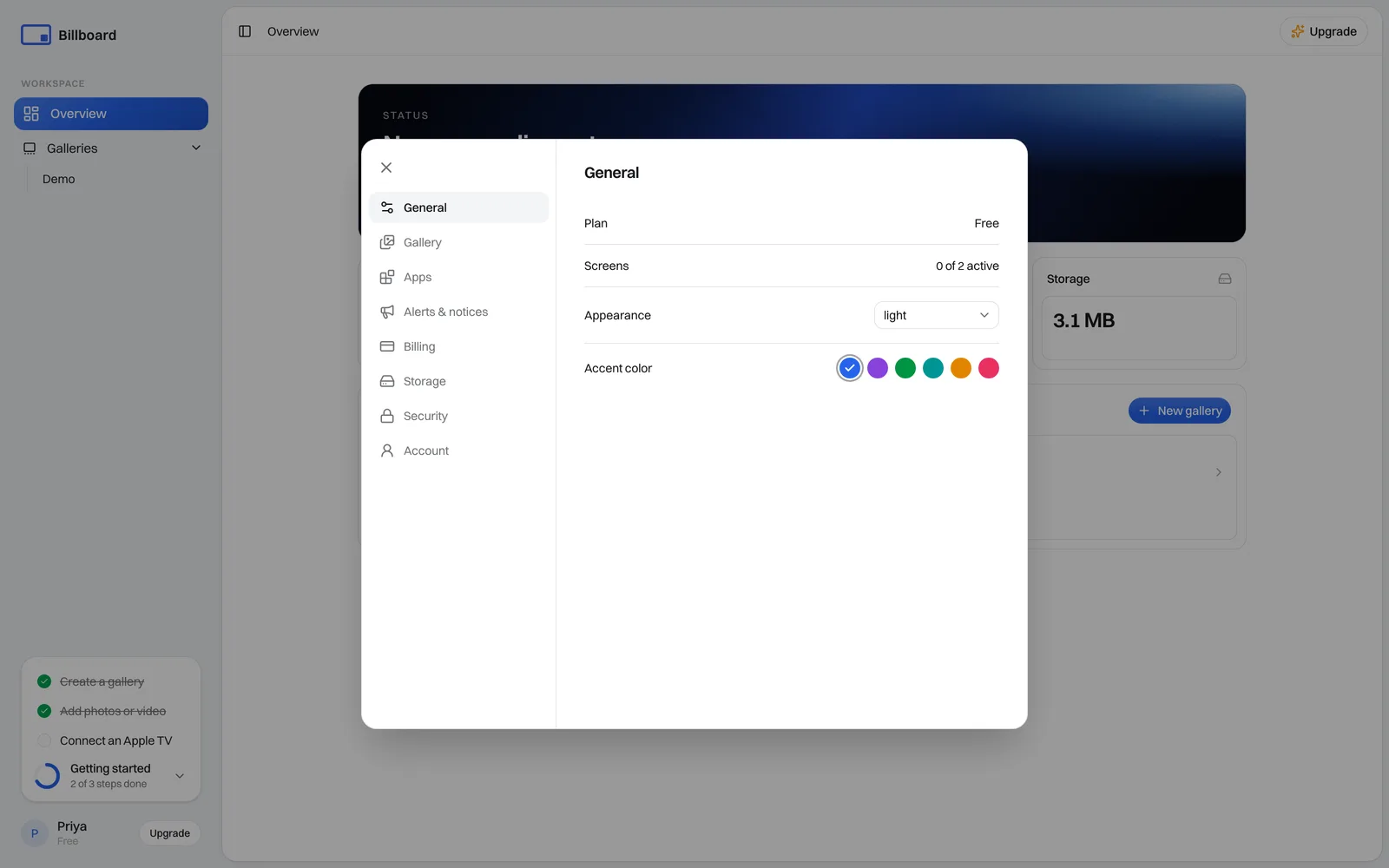
The Settings panel
Settings is organised into sections down the left:
- General. Your plan and screen count at a glance, plus how the dashboard looks (below).
- Gallery. The account-wide screen notice and Keep original photos. See Broadcast a notice and Storage and original photos.
- Billing. Plan, payment method and invoices. See Plans, billing & screen limits.
- Storage. Usage and reclaiming space. See Storage and original photos.
- Security. Password and connected sign-in providers.
- Account. Your profile and account deletion.
Light or dark
Under General → Appearance, choose:
- Light. The default.
- Dark. Easier on the eyes in a dim room.
- System. Follows your device's light/dark setting automatically.
This changes only how your dashboard looks in this browser. It doesn't touch what your screens show.
Accent colour
Pick an Accent colour to tint the dashboard's buttons and highlights however you like. Same as the theme, it's a personal dashboard preference and doesn't change your displays. To colour the AirPlay panel on screen, use each gallery's own settings. See Customise the display.
Your display photo
Add a display photo under Settings → Account to personalise your account. Select Upload next to Display photo and choose an image.
Your profile and organisation
Also under Account, keep your name, organisation and email current. These show up on invoices and receipts. Sign-in and passwords are covered in Signing in and your account.
Need a hand? Email support@getbillboard.app.