Getting started
Create a gallery, open the Billboard app on your Apple TV, and connect the two from your dashboard. Your first screen can be live in a few minutes.
Last updated 26 July 2026
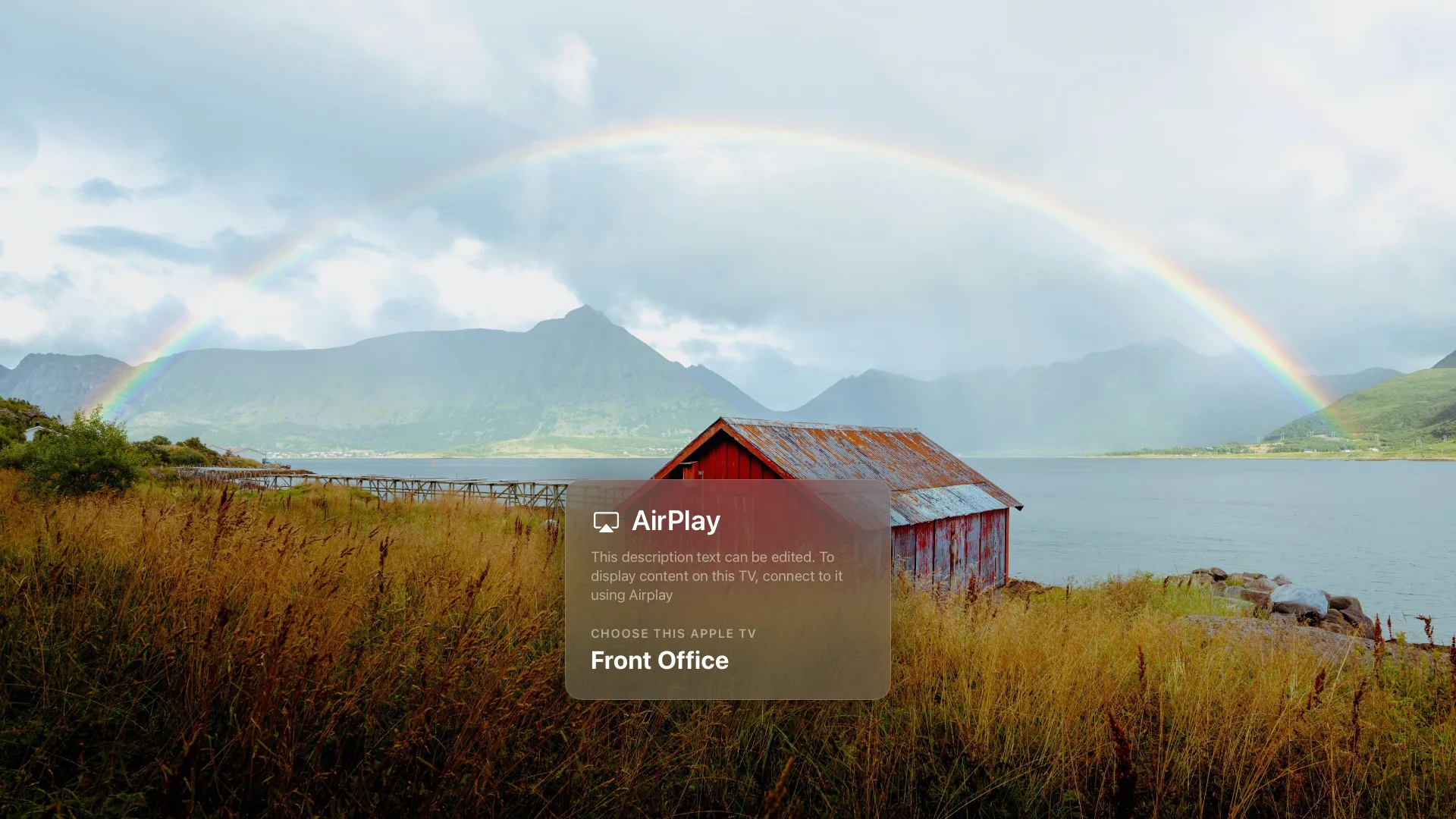
Billboard turns any Apple TV into your own Conference Room Display. Your images and video on screen, and the AirPlay join card still works exactly like it does in Apple's built-in Conference Mode. This guide takes you from nothing to a live screen.
Before you start
You'll need three things:
- An Apple TV (any model on a current tvOS release) connected to a display.
- A Billboard account. Sign up free at getbillboard.app.
- A few images or a short video to show.
1. Create a gallery
A gallery is a set of media plus its display settings. Usually you'll make one per space. Think "Main Lobby" or "Library".
- Sign in at getbillboard.app.
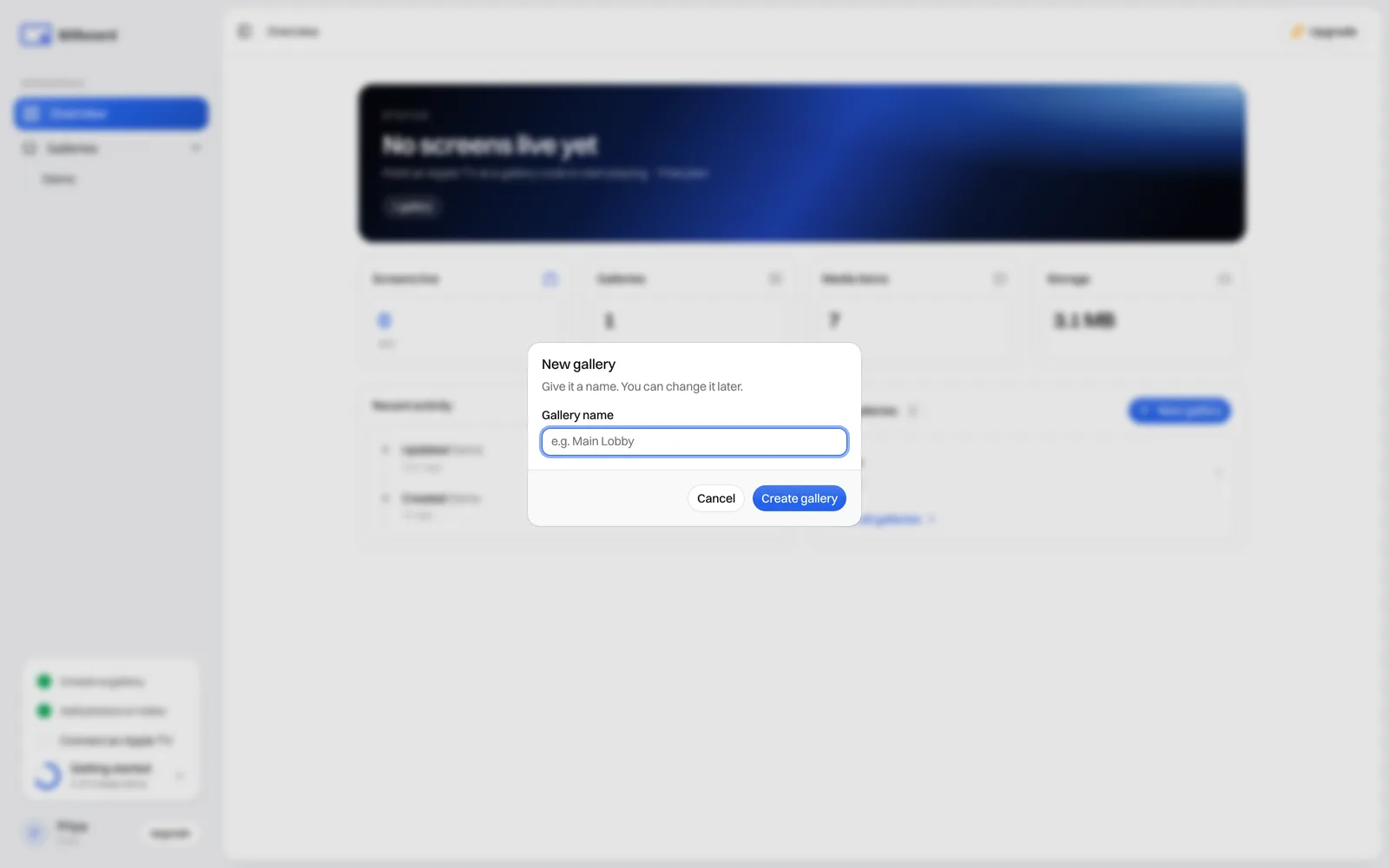
- Select New gallery, give it a name, and choose Create gallery.
In the new gallery, select Add content and add your files.
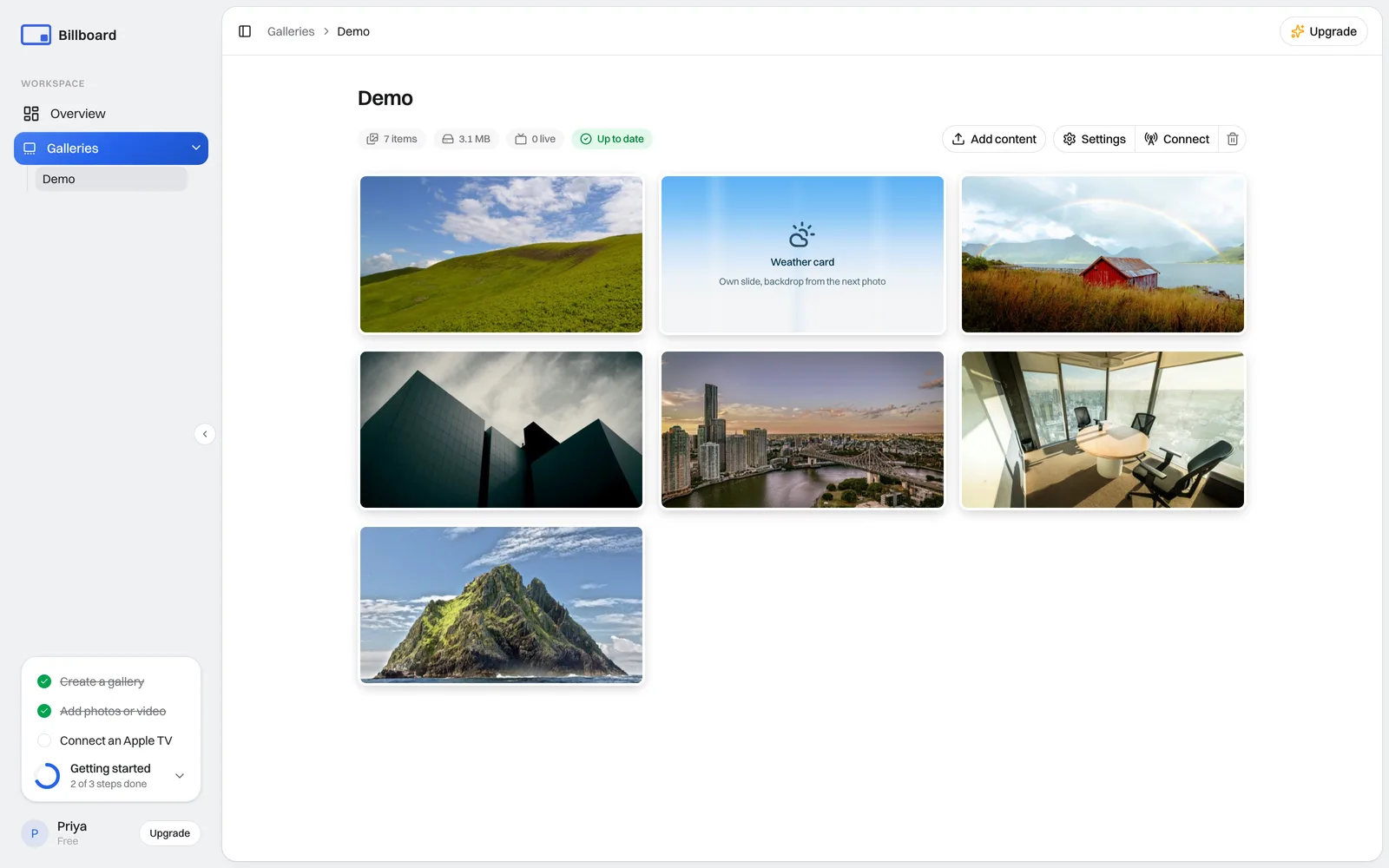
Billboard crops each item to your gallery's shape, then resizes and compresses it for crisp fullscreen playback. If something comes in below Full HD, it warns you. Drag the handle on the left of any item to reorder. Screens play top to bottom.
Tip: you can point several Apple TVs at one gallery, or give each screen its own. Start with one and add more later. None of this is locked in.
2. Install the app on your Apple TV
- On the Apple TV, open the App Store.
- Search for Billboard Screen.
- Select Get to install, then open it.
3. Connect your screen
Here's the part that trips people up if they're expecting to type a long code into the TV. You don't. It works the other way round.
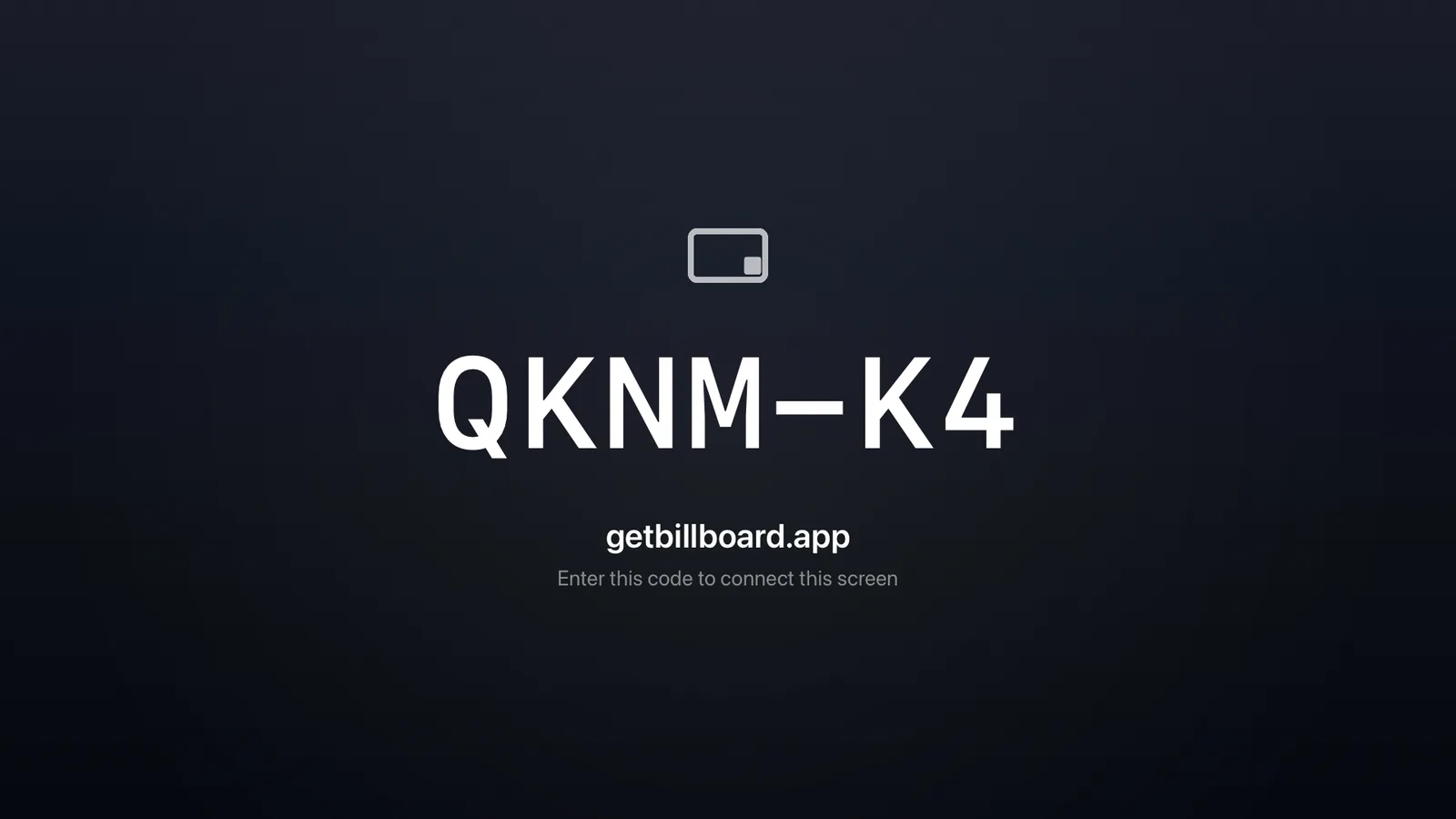
Open the app and it shows a short code on screen, something like ABCD-23, with getbillboard.app underneath it.
Now go back to your dashboard and hand that code over:
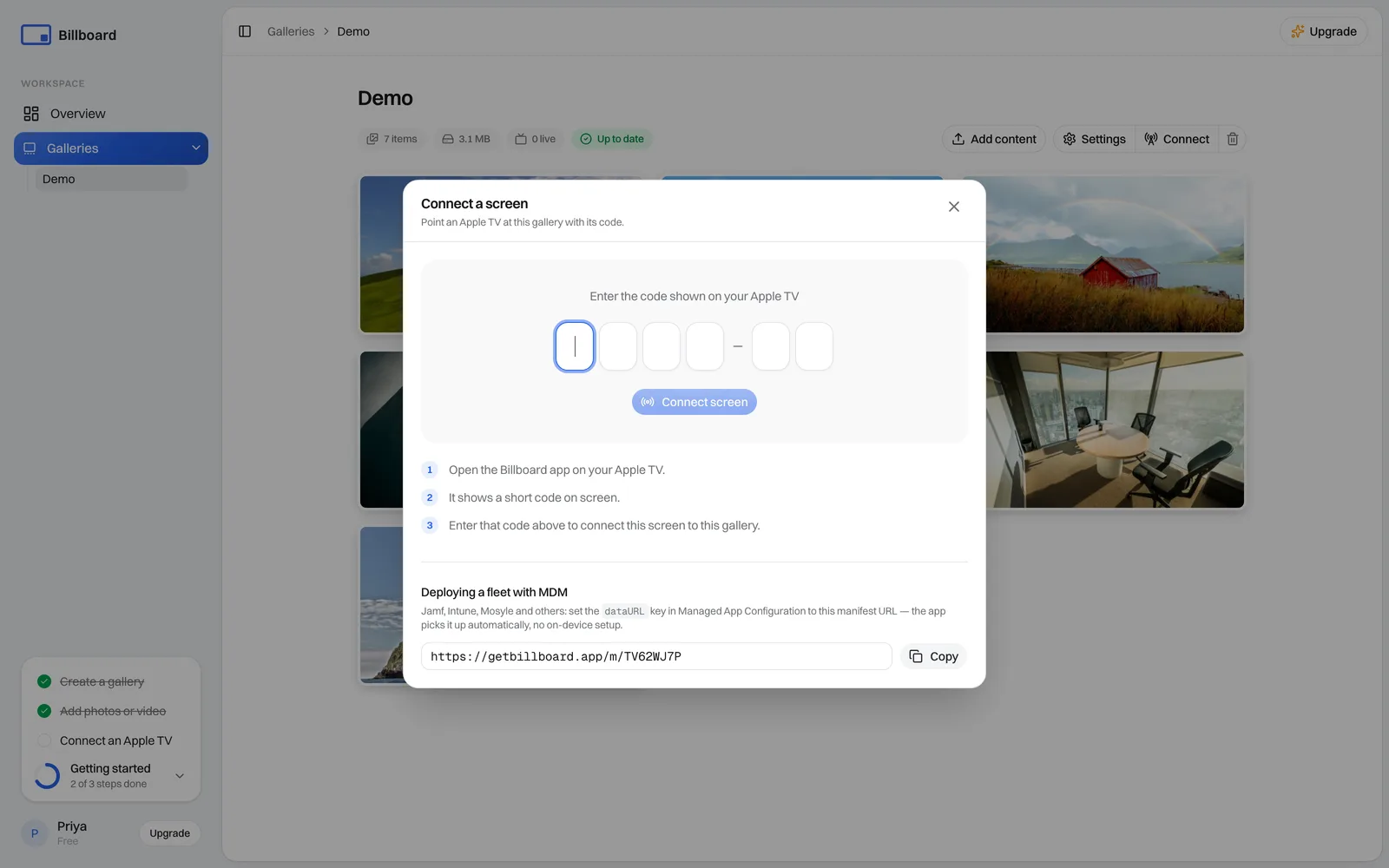
- Open your gallery and choose Connect.
- Type the code shown on your Apple TV into the box.
- Select Connect screen.
Within a few seconds the slideshow starts. The AirPlay card sits over the top and drifts gently so nothing burns in, and anyone in the room can still AirPlay to the display as normal.
4. Make changes any time
Everything is controlled from the dashboard, not the TV:
- Add or remove media, and drag items to reorder them.
- Tune how long each item shows.
- Adjust the AirPlay panel, add an on-screen clock, or broadcast a notice across the top of the screen.
Screens refresh on the schedule you choose, anywhere from every few minutes to weekly, so your changes show up on their own without anyone touching the Apple TV. See Managing galleries for the full set of controls.
Roll out more than one screen
- A few screens: install the app on each Apple TV and connect each one from its gallery's Connect panel. Every screen shows its own code. Point them all at the same gallery, or give each its own.
- A whole fleet: deploy with your MDM and push the gallery to every Apple TV at once, so there's nothing to connect screen by screen. See the guides for Jamf Pro, Microsoft Intune, and Apple Configurator 2.
Keep it running unattended
Billboard is built to be left on:
- It keeps the screen awake and resumes on its own after a restart.
- Press Back on the Siri Remote to open the on-screen menu. From there you can reload the screen, disconnect it, manage your plan, or open the privacy policy. Press Back again to close the menu, and once more to exit to the Apple TV Home screen.
For an always-on screen, turn off the Apple TV's screen saver and set it not to sleep. To stop the app being exited at all, lock the Apple TV with Single App Mode. If something isn't working, see Troubleshooting.