Delete your account and data
How to permanently delete your Billboard account, exactly what gets removed, and the gentler alternatives if you only want to stop paying.
Last updated 26 July 2026
You can delete your account and everything in it yourself, any time. No need to email us. Before you do, have a look at the gentler options below. Deletion can't be undone, so it's worth checking one of them doesn't do what you actually want.
Before you delete
Most people who reach this page don't need to delete anything:
- Just want to stop paying? Cancel your plan or downgrade to Free instead. Your galleries and media stay exactly where they are.
- Just pausing a display? Unplug the Apple TV. The screen drops out of your active count. See What counts as an active screen.
Deleting is only for when you want everything gone for good.
What deletion removes
Deleting your account is permanent and immediate. It removes:
- Your galleries.
- All uploaded images and video.
- Every screen record tied to the account.
Any Apple TV still connected to one of your galleries will stop showing your content on its next refresh, because the gallery no longer exists.
Tip: this can't be undone, and we can't recover deleted content. Export or save anything you want to keep before you start.
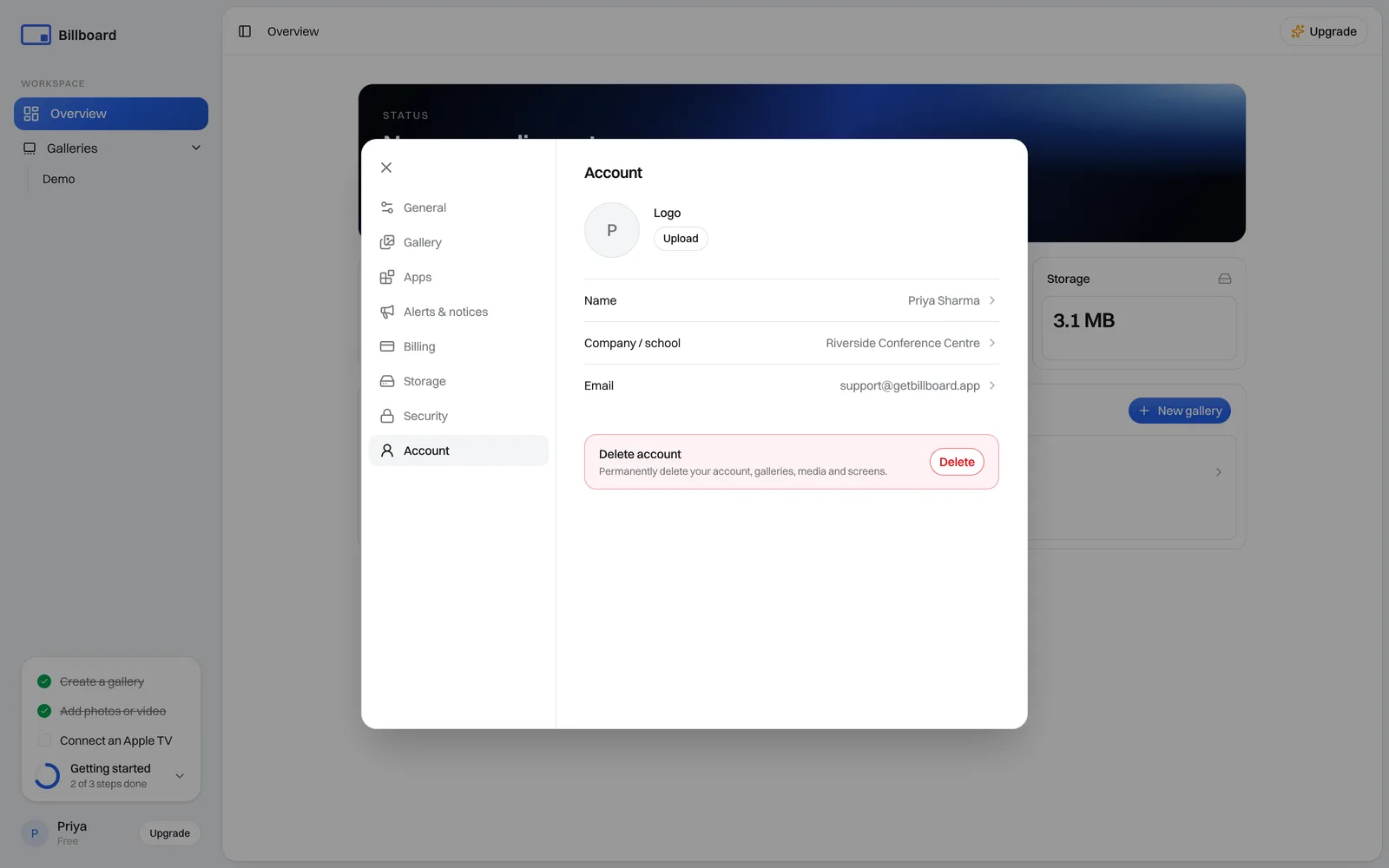
Delete your account
- Open your account from the bottom-left of the dashboard, then go to Account.
- Scroll to the Danger zone and select Delete account.
- In the confirmation, type
DELETEto enable the button, then select Delete account. You'll be signed out once it's done.
Where your data lives
Your account details are stored in Sydney and your media in the Oceania region, with some providers processing limited data overseas. Deletion removes them from our systems, though copies can persist briefly in backups before they're overwritten. Payment records held by our payment processor are retained by them as required by law. See our Privacy Policy for the full detail.
Not sure which option is right for you? Email support@getbillboard.app and we'll help.