Editing and cropping photos
Every photo is framed for your screens. Re-crop from the original, add a caption, and set how long a photo shows or when it appears.
Last updated 26 July 2026
Every photo you upload gets framed to your gallery's shape automatically, 16:9 for a normal gallery and 9:16 for a portrait one. What's in the frame is exactly what the TV shows. You can go back and change that framing as long as Keep original photos is on, and each photo carries its own timing and schedule. It all lives in a photo's Photo settings.
Open a photo's settings
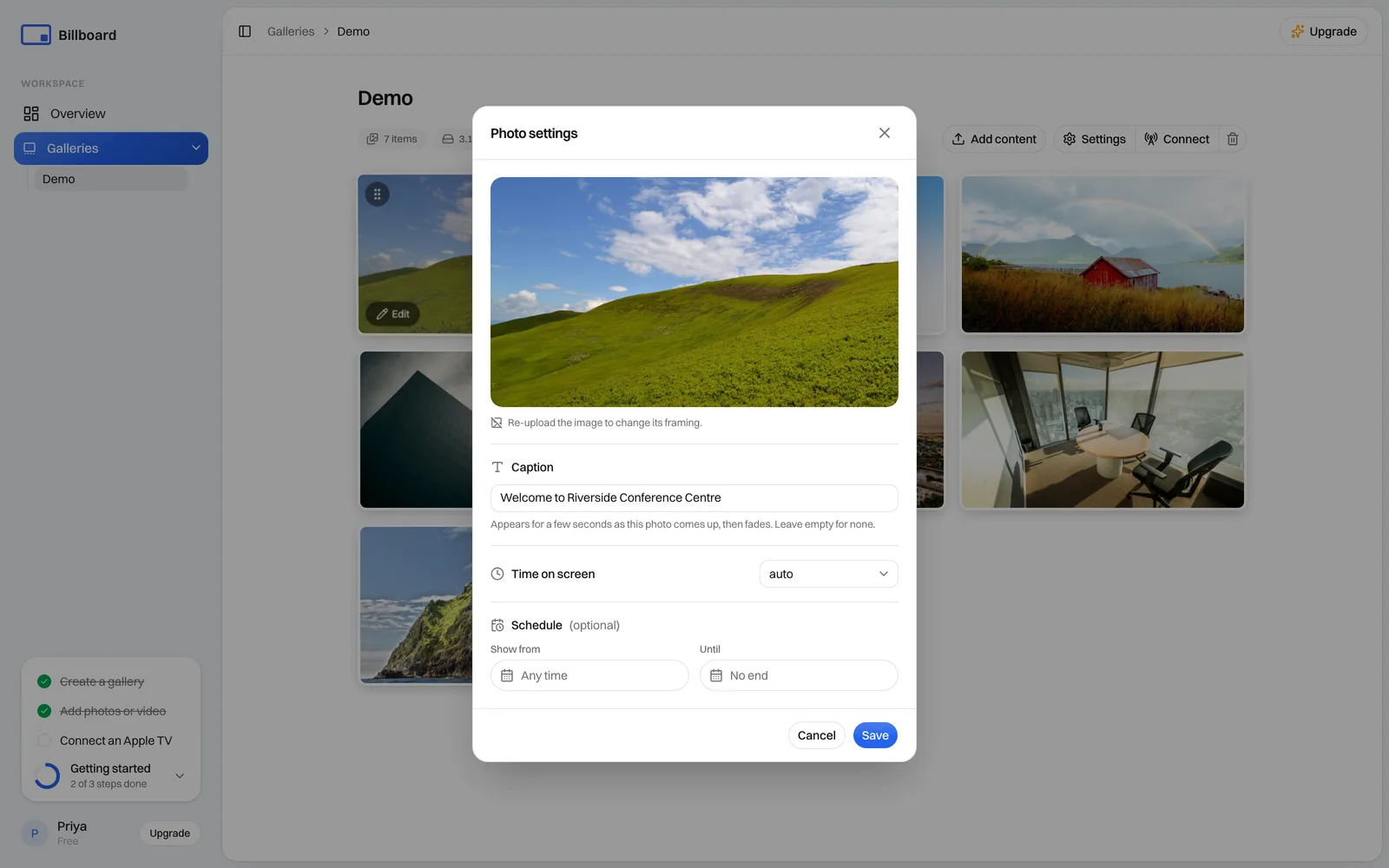
Open a gallery, hover a photo in the grid (on a touch screen, just tap it) and select Edit. The Photo settings panel opens with four things: the photo's framing, a Caption, Time on screen and an optional Schedule.
Re-crop to fit the screen
The panel shows how the photo is currently framed. If Billboard still holds the photo's original, Adjust crop appears and you can reframe it. If it doesn't, the panel says so and re-uploading is how you change the framing. See Keep original photos below.
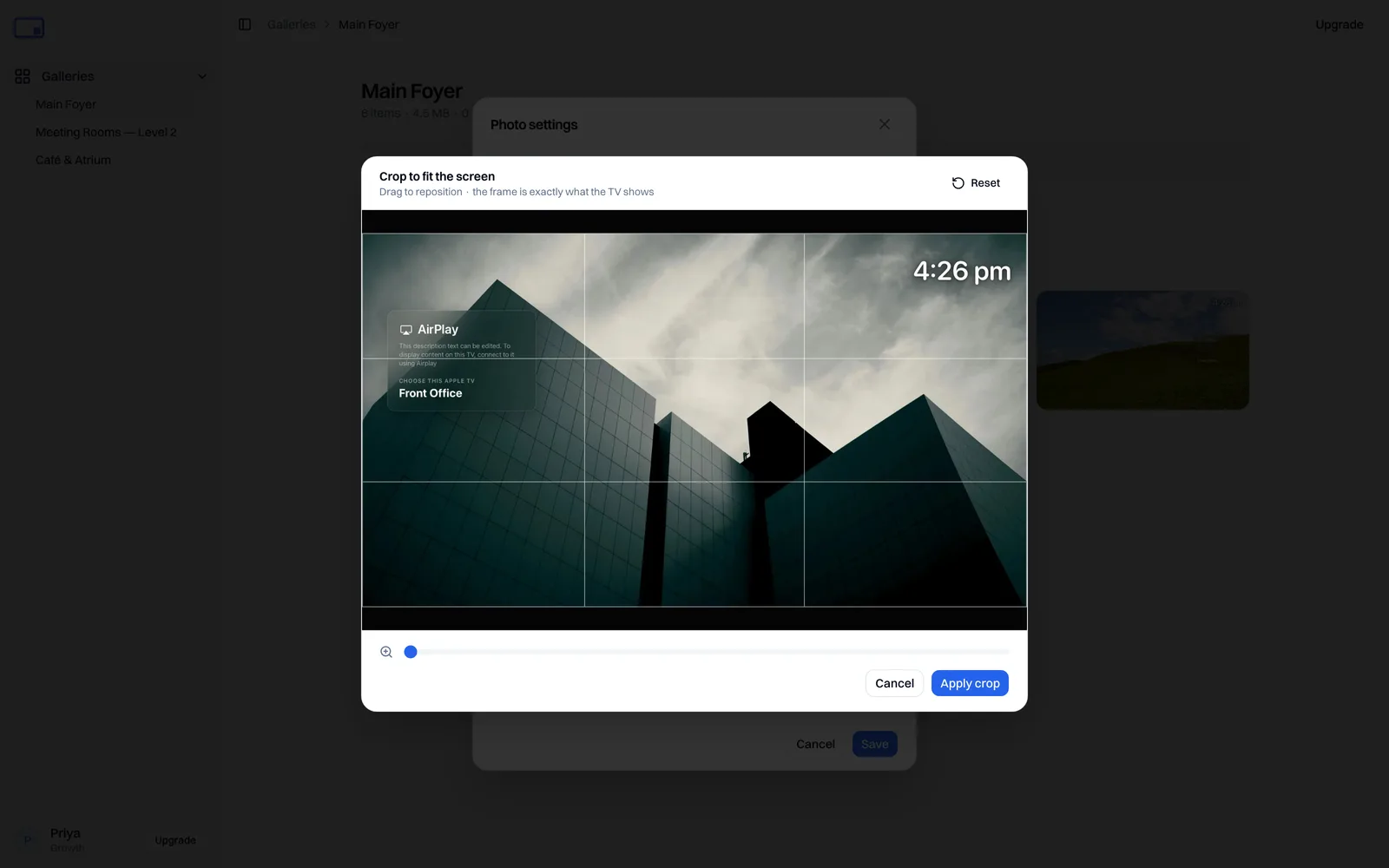
- Drag the photo to reposition it inside the frame.
- Zoom with the slider to fill the frame or pull more of the shot in.
- The bright frame is exactly what appears on the TV, in whatever shape this gallery's screens are. Anything in the darker area is off-screen.
- Reset returns to the original framing.
Select Apply crop when it looks right, then Save. The new framing reaches your screens on their next refresh.
Non-destructive by default: re-cropping works from the photo's stored original, so you can reframe the same photo as many times as you like with no loss, as long as Keep original photos is on. See Storage and original photos.
If you can't re-crop a photo
With Keep original photos off, applying a crop is final. Billboard drops the original to save space, so there's no undo. It'll ask you to confirm first. To reframe a photo like that later, you'll have to upload it again. Want every photo to stay re-croppable? Turn on Keep original photos under Settings → Gallery.
If a crop ends up smaller than Full HD, meaning 1920×1080 across or 1080×1920 tall, you'll get a warning. It may look soft on a large screen.
How long a photo shows
Caption
Type a line into Caption and it appears along the bottom of the screen for a few seconds as that photo comes up, then fades. Leave it empty for none. See Captions.
Under Time on screen, set how many seconds this photo stays up. Leave it on auto and it uses the gallery's default from Settings. See Customise the display.
Schedule a photo
Schedule lets you give a photo a Show from and/or Until date and time, so it turns up and drops off on its own. Handy for a dated event poster. Outside its window the photo just doesn't show, and a Scheduled badge marks it in the grid.
Editing a video
Videos don't get cropped, they play as uploaded. But the same panel still lets you set a video's time on screen and schedule.
Need a hand? Email support@getbillboard.app.