Upload and organise media
Add images and video to a gallery, reorder the playlist, and remove items. iPhone (HEIC) photos and screen framing are handled for you.
Last updated 26 July 2026
A gallery's playlist is the images and video your screens loop through. Here's how to add content, set the order, and take things out again.
Add media
Open a gallery from the dashboard and select Add content. Drop your files onto the panel, or select browse to pick them.
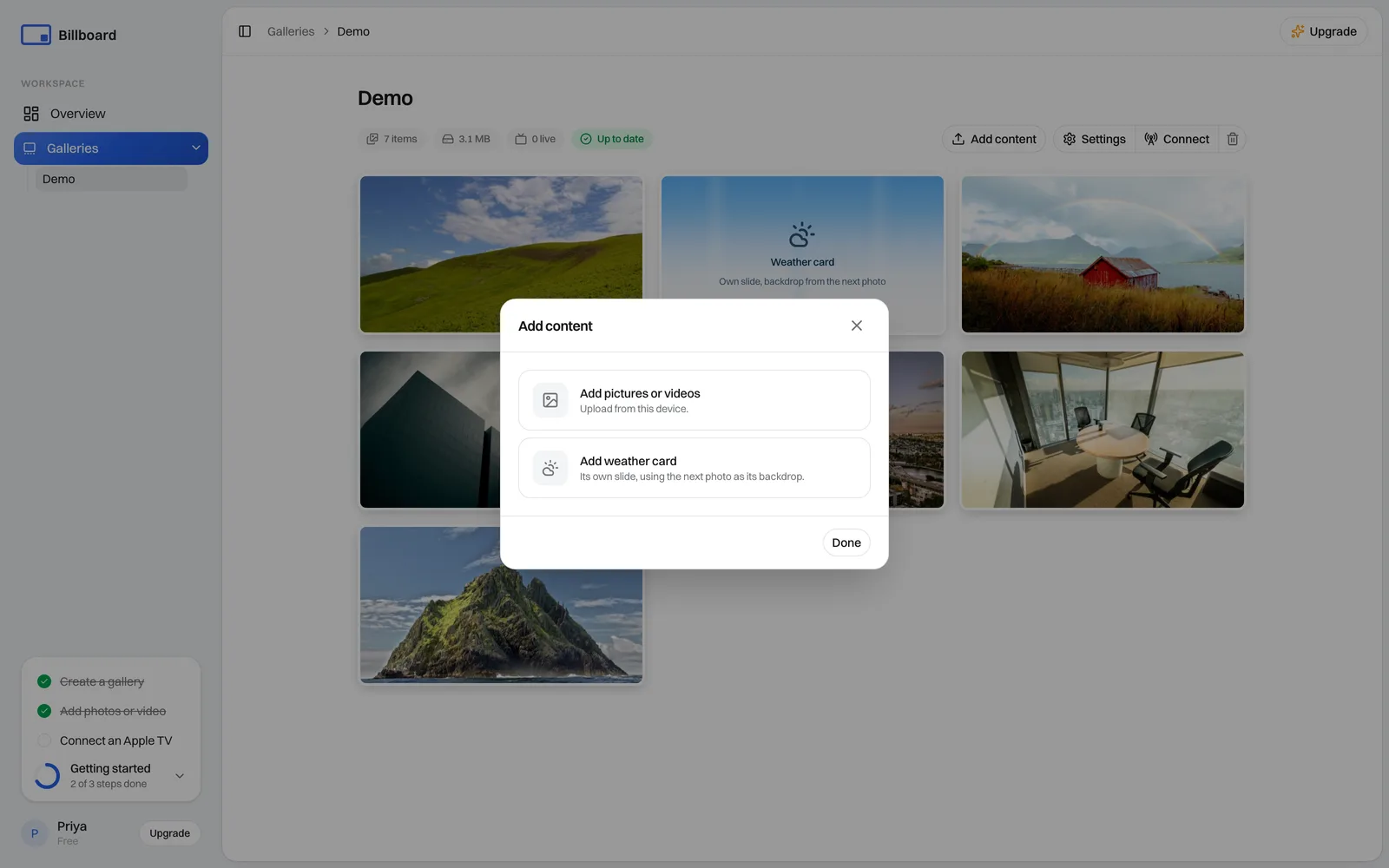
- Formats. Images (JPG, PNG, WEBP, HEIC) and video.
- iPhone photos. HEIC photos convert automatically, so you can upload straight from your phone.
- Screen framing. Each photo is framed to your gallery's shape, 16:9 for a normal gallery and 9:16 for a portrait one, then resized and compressed for crisp fullscreen playback. By default a photo fills the screen, which crops whatever doesn't fit the shape. Switch an item to Show all of it and nothing is cut off, with the edges extended to meet the screen rather than black bars. You can change the framing later as long as Keep original photos is on, otherwise a crop is final and reframing means uploading the photo again. See Editing and cropping photos.
- Quality warning. If something comes in below Full HD at your gallery's shape, 1920×1080 across or 1080×1920 tall, you'll get a warning, since it may look soft on a big screen.
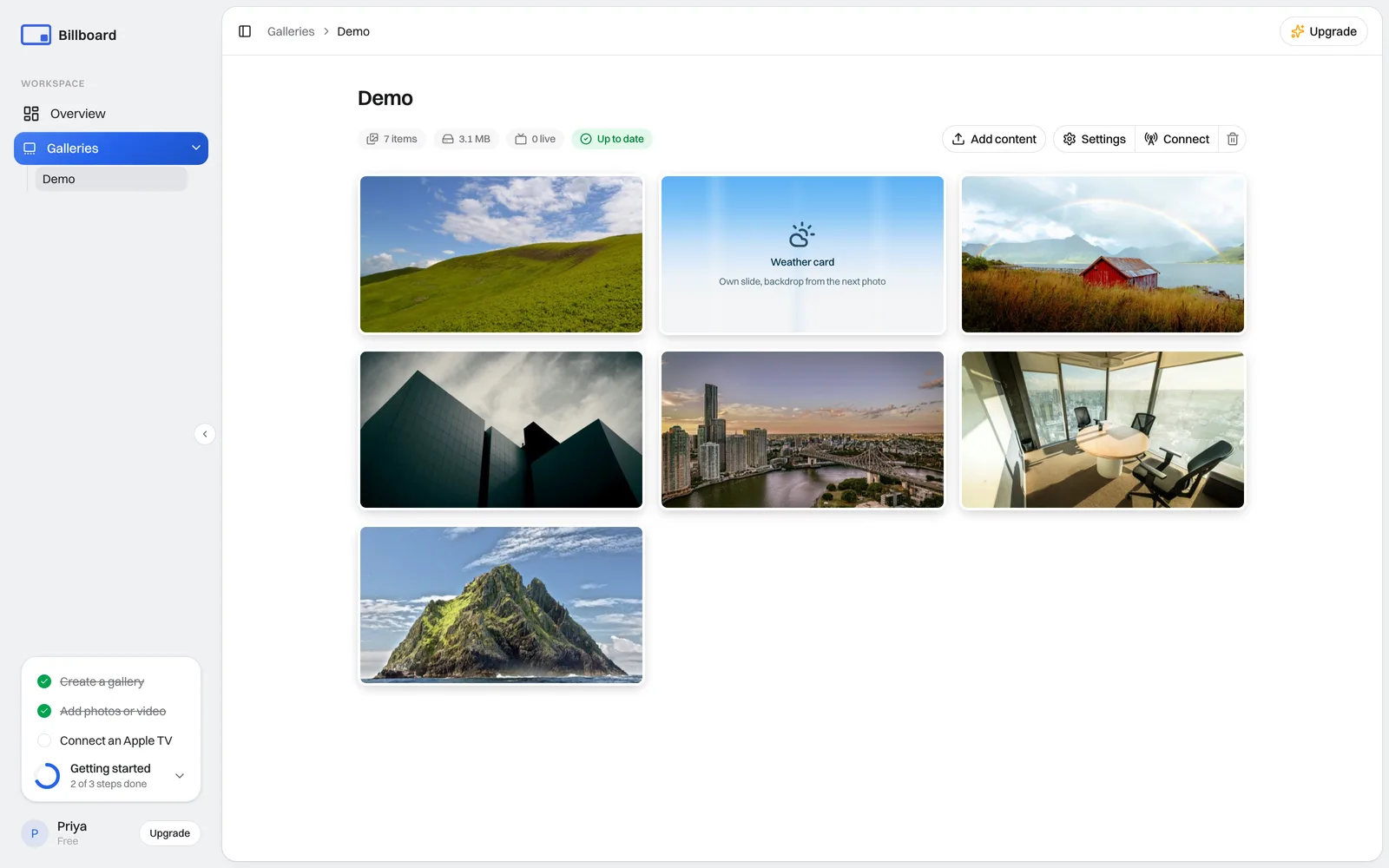
Each file shows its own progress as it uploads, and you can add several at once. The new media turns up as cards in the grid.
Set the order
Drag a card to move it. The drag handle shows up in the top corner when you hover (on a touch screen, just drag). Screens play the items left to right, top to bottom, then loop.
Timing, framing and scheduling
Each card has its own crop, time on screen and schedule. Hover a card and select Edit to open its settings. All of that lives in Editing and cropping photos.
Remove items
To remove one or several items at once:
- Select the items. Click a card on desktop, or press and hold on a touch screen. Selected cards show a tick.
- Select Delete (n) and confirm.
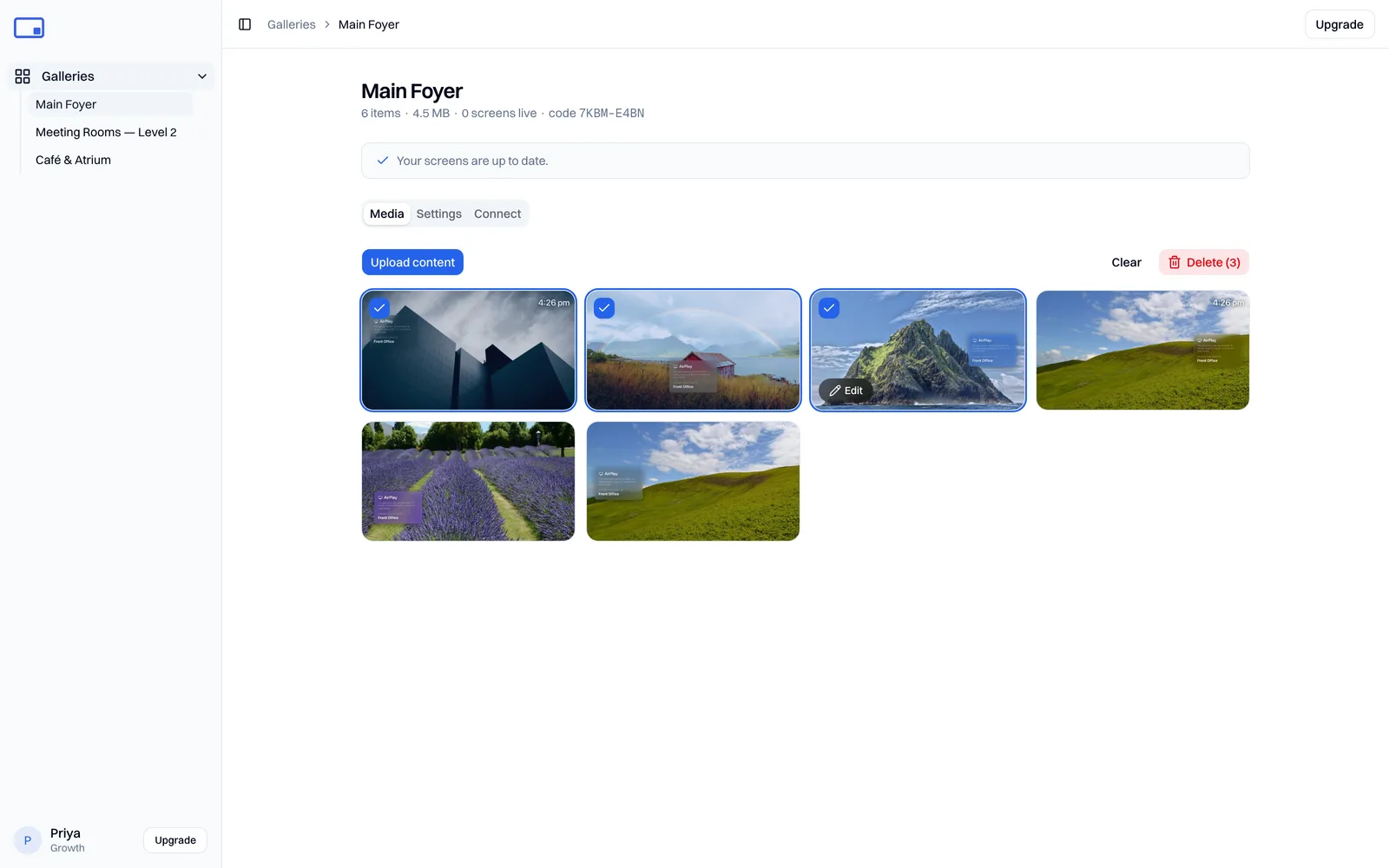
Deleting is permanent and can't be undone. The items stop showing on your screens on their next refresh.
Tip: removing media also frees up storage. See Storage and original photos to check your usage and reclaim space.
When changes reach your screens
A banner at the top of the gallery tells you when your screens will next pick up changes. They apply on each screen's next refresh, not instantly. On the Apple TV you can force an immediate refresh with Reload. See The Billboard app on Apple TV.
Need a hand? Email support@getbillboard.app.