Storage and original photos
See how much space your media uses, understand the original photos kept for re-cropping, and reclaim space by deleting originals or unused media.
Last updated 8 July 2026
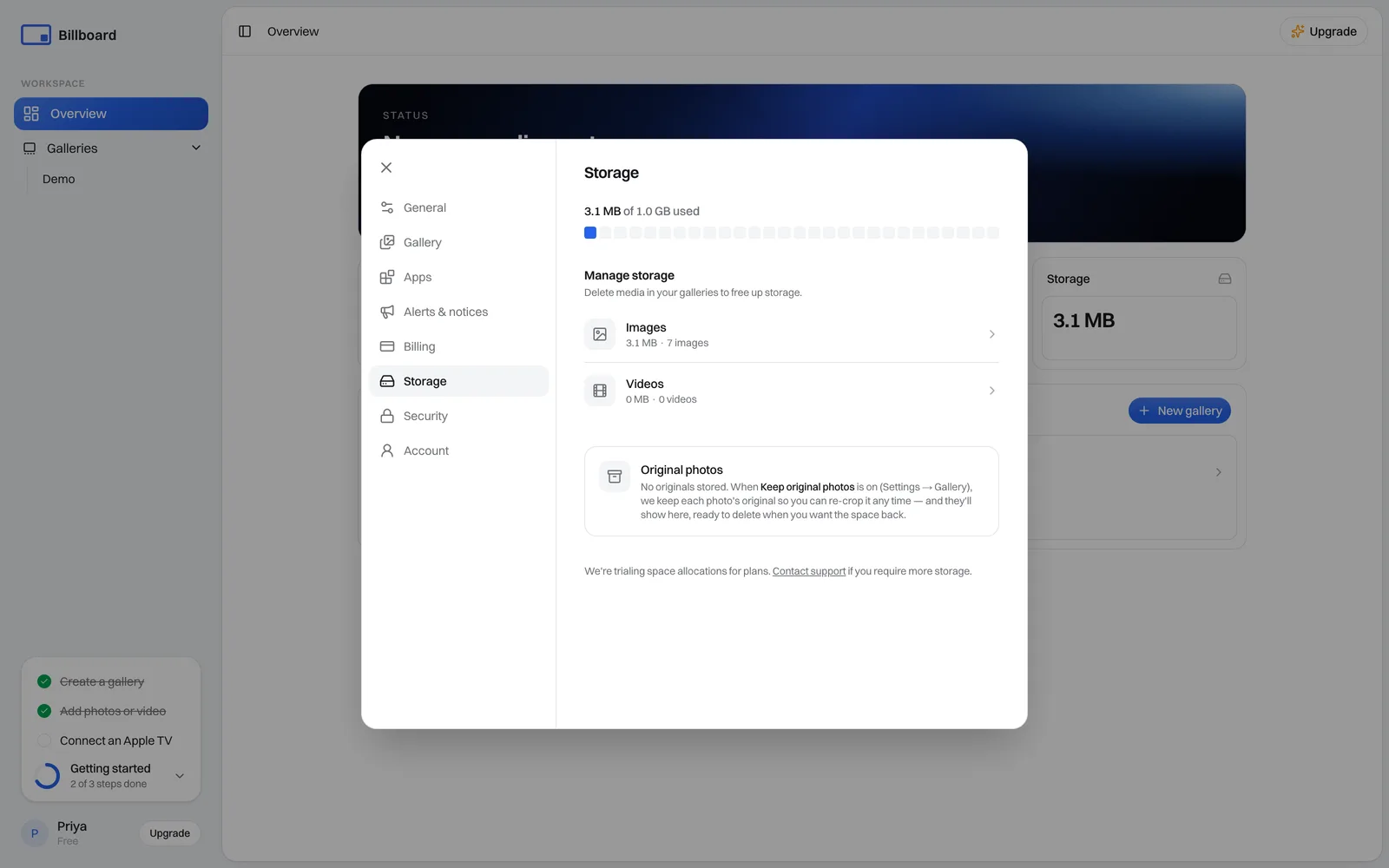
Every plan comes with a chunk of media storage. To see what you're using and clear some out, go to Settings → Storage.
How much you're using
The bar at the top shows how much of your allowance you've used, something like 7.9 MB of 50 GB used. Bigger plans get more; see Plans, billing & screen limits. Below it, Manage storage splits your usage into Images and Videos, with a count and size for each.
Quickest way to free up space? Delete media you no longer show. Open the gallery and remove the items. See Upload and organise media.
Original photos
When you upload or crop a photo, Billboard hangs on to a full-resolution original so you can re-crop it later without uploading it again. You'll find them under Original photos, with their total size and how many are kept.
Originals are the only way to re-crop without losing quality (see Editing and cropping photos), but they do eat into your space. Once your galleries are how you want them, you can claim it back:
- Select Delete all originals.
- The cropped photos on your screens stay exactly as they are. Only the stored originals go.
- After this, reframing a photo means uploading it again.
Keep original photos
Whether originals get kept is up to Keep original photos, under Settings → Gallery:
- On. Every crop keeps its original, so you can re-crop any photo whenever. Uses more storage.
- Off. Cropping is final. The original goes straight away to save space.
A handy trick: turn it on before a big batch of edits, then delete the originals from Storage once you're happy. You get the flexibility while you work, and the space back when you're done.
Need more space?
Space allowances are still being trialled per plan. Need more? Upgrade your plan or drop us a line at support@getbillboard.app.